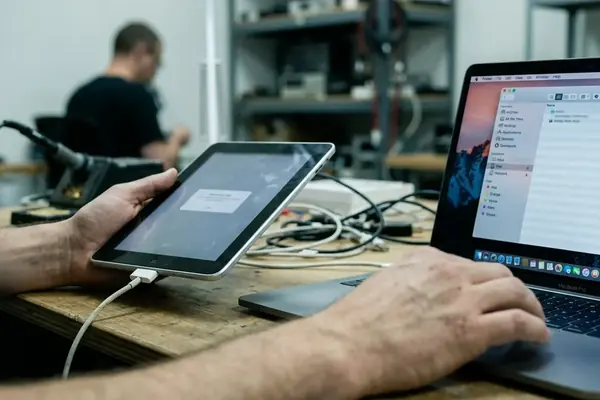

Why iOS Photo and Video Transfers Are Not Always Simple
An iPhone or iPad can display thousands of photos while the computer import tool registers fewer items, stalls mid-process, or surfaces duplicates. I start from the layers that govern every transfer: device trust, cable quality, USB mode, Photos library state, iCloud Photos settings, file formats, and local storage availability.
Transferring originals differs from importing into a photo library or copying visible DCIM folders. Each path exposes different subsets of media depending on whether full-resolution files sit on the device.
Choose the Transfer Path Before You Plug In
The method that succeeds depends on computer type, library size, iCloud Photos status, and whether originals or a curated selection are required. On Mac, Photos handles library-based imports with albums and metadata intact. Image Capture extracts files to folders. AirDrop suits small manual batches. Finder manages the device itself rather than routine photo browsing.
Windows users reach for the Photos app for guided imports, File Explorer for direct DCIM copying, iCloud for Windows when cloud sync is active, or third-party tools for legacy devices and direct export needs. Devices with Optimize iPhone Storage enabled expose only thumbnails until full-resolution files download locally.
Prepare the iPhone, Cable, and Computer for a Clean Import
Unlock the device and keep it awake. Connect with a reliable USB-C or Lightning cable. Approve the Trust prompt when it appears. Check free space on the destination drive before moving large libraries that contain many videos. Temporarily disable aggressive sleep settings on laptops during extended transfers. During training sessions, USB 2.0 connections on recent hardware completed 2,000-item transfers in 20-35 minutes when no sleep interruption occurs.
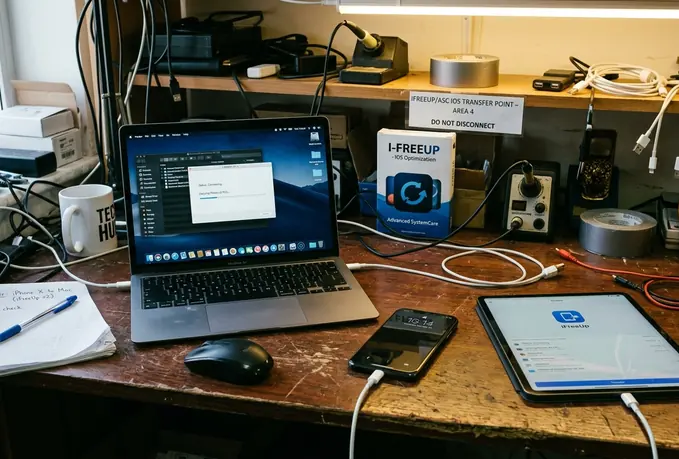
How to Transfer Photos and Videos from iOS to a Mac
Connect the device, unlock it, approve trust, then open Photos and select the device in the sidebar. Choose items and import into the library. This route suits users who want albums, dates, faces, and organized storage rather than loose files. Image Capture offers an alternative: select the device, pick a destination folder, and export selected or all items as files. Folder exports of on the order of 8,000 items can finish in 20-50 minutes on macOS Ventura with direct USB-C connection.
How to Transfer Photos and Videos from iOS to Windows
Connect the device, unlock it, approve trust, open the Photos app, and choose import from the connected device. Review detected media and select the destination. For direct control, open This PC, select the Apple device, browse Internal Storage, open the DCIM folders, and copy media to a local folder or external drive. DCIM subfolders on iOS 17 can create folder counts hovering around 100-150, requiring full-folder copy rather than individual file selection.
Where iFreeUp Fits in a Desktop Transfer Workflow
iFreeUp supplies a control-oriented desktop interface for browsing and transferring iOS media without relying solely on Photos, Image Capture, or Windows Photos. Practical cases include moving selected albums or camera-roll items, handling older iPhone, iPad, or iPod touch devices, and combining transfer with storage cleanup planning. Older legacy iPod touch models may expose media lists after trust approval. Availability depends on what remains stored locally and what iOS exposes to the computer.
Limits, Verification, and Safe Cleanup After Transfer
No transfer method retrieves full-resolution originals stored exclusively in iCloud until they download to the device first. Deleted, hidden, shared-library, or app-contained media may behave differently from normal Camera Roll items. After import, open the destination folder or library, test several recent and older items, play large videos, confirm expected date ranges, and keep a second backup before deleting from the device. A check of in the ballpark of 50 random files after import can identify date-range mismatches early in review.
Apple’s official guidance on transferring photos and videos provides additional context for edge cases.