
Why Desktop Cleanup Starts Before the Scan
An iPhone, iPad, or iPod touch sits nearly full. The user opens a desktop utility expecting quick relief. That relief depends on three conditions already in place: a stable physical link, readable storage, and a verified backup or transfer route.
Tools such as iFreeUp or Advanced SystemCare for iOS perform best when the device stays unlocked, trusted, charged, and free from cable or permission interruptions during the session.
Criteria for Selection: What Made This Checklist
Each item addresses one of four desktop-cleanup requirements: connection stability, data safety, file visibility, or cleanup accuracy. The step must remain feasible for typical iPhone and desktop users, apply across Mac and Windows paths, and occur before any deletion or move begins.
Advanced forensic recovery, jailbroken-device steps, automated registry edits, and unsupported iOS modifications fall outside the scope by design.
Scope and Limits: What Preparation Can and Cannot Guarantee
Preparation raises cleanup reliability. It does not ensure every cache, app container, or hidden file becomes visible from the desktop. Modern iOS and iPadOS limit direct access to many app areas, so results depend on what the device, operating system, and utility actually expose.
A desktop workflow should never replace a backup, especially before removing photos, videos, downloads, app documents, or transferred media.
Connection Readiness: The First Three Checks
1. Confirm the cable is data-capable, not charge-only
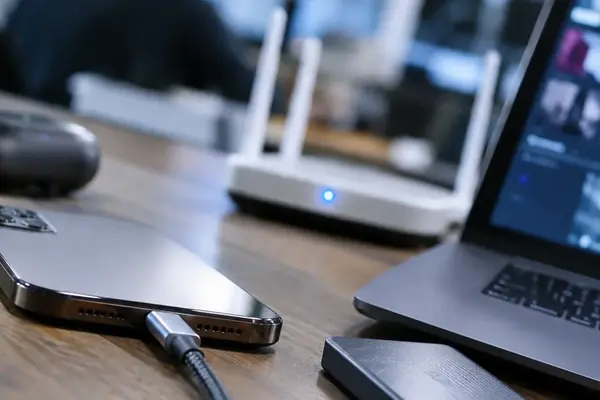
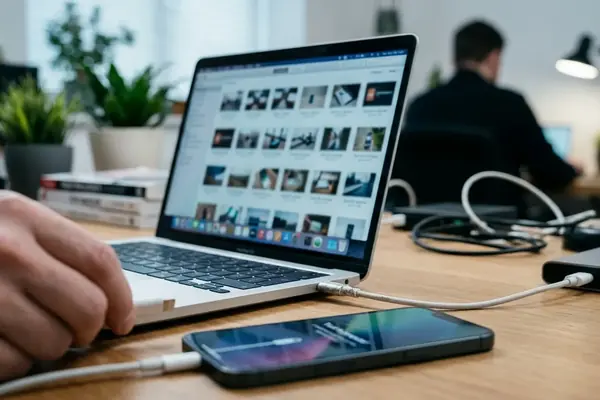
A weak or charge-only Lightning or USB-C cable often drops the link mid-scan or mid-transfer. Use a known-good cable plugged straight into a computer USB port rather than an unpowered hub.
2. Unlock the iOS device and approve the trust prompt
Connect the device, unlock it, answer the Trust This Computer prompt, and leave the screen awake until the desktop registers the device. Dismissing the prompt frequently leaves the device visible only for charging.
3. Verify that the desktop actually sees the device
On Mac, check Finder for the device entry on recent macOS releases. On Windows, confirm Apple device components or iTunes-era drivers are present. If the operating system cannot see the device, the cleanup utility is not the first place to look for fixes.
Data Safety: Back Up Before Removing Anything
4. Create a current backup before cleanup
Preparation includes a fresh backup whenever junk files, large media, app documents, or transferred content will be deleted. Follow Apple’s official iPhone backup guidance for the current method.
5. Identify irreplaceable files before running any cleaner
Review Photos, Voice Memos, Files, Messages attachments, downloaded documents, and app folders. Size or age alone does not mark a file as safe to remove.
6. Decide what belongs on the desktop first
Move videos, photo exports, PDFs, music files, or app documents to the Mac or Windows PC before deletion. Desktop cleanup functions here as a transfer workflow rather than simple removal.
Storage State: Read the Device Before Cleaning It
7. Check iOS storage categories before connecting cleanup software
Compare the device’s own iPhone or iPad Storage report with what the desktop utility detects. Categories such as apps, media, system data, and documents supply context for later decisions.
8. Close active apps and finish pending downloads
Active transfers, background downloads, cloud sync, or app updates can alter storage while a scan runs. Allow sync and downloads to finish before starting cleanup.
9. Charge the device and disable avoidable interruptions
Begin with adequate battery, keep the device awake as needed, and avoid moving the cable during transfers. Interrupted sessions create extra risk when files have already moved but originals remain on the device.
Prepare the Mac or Windows Computer Too
Cleanup preparation covers the desktop side as well. The computer needs free space, stable USB ports, and write permission for transferred files. Choose a specific destination folder in advance, such as an external-drive folder for iPhone exports or a dated archive on the desktop.
On Windows, repeated disconnects call for checking the USB port, cable, and Apple device support components before another attempt.
The Final Pre-Cleanup Handoff
Run the compact checklist once more: backup complete, device trusted, cable stable, storage reviewed, important files transferred, desktop destination selected, and cleanup tool opened only after those checks pass.
Bottom Line: Desktop cleanup stays safest when verification, backup, transfer, and deletion occur in that order.
Field Note: If the device is not recognized, stop and resolve the connection issue before rescanning from the utility.