
Contents
- Day 1 — Departure: Charting Crash Logs and Temporary Files
- Day 2, Taking Soundings in iPhone and iPad Storage
- Day 3, The Storm: Inspecting Analytics and Crash Records
- Day 4, Restricted Waters: What Cleanup Utilities Can Reach
- Day 5, Clearing the Decks with Built-In iOS Controls
- Day 6, Dockside: Running a Controlled Utility Pass
- Day 7, Return to Port: Verify, Escalate, or Stop
Day 1, Departure: Charting Crash Logs and Temporary Files
I open every storage investigation the same way: lock the definitions before I touch a single control.
Crash logs are diagnostic records created when iOS or an app stops unexpectedly. Diagnostic data may also record resource use and system events. Temporary files are short-lived caches, downloads, update remnants, and working data. Those three labels can overlap in storage reporting. They are still not interchangeable. The System Data label is broader than crash logs alone, and treating them as one pile is how people start deleting the wrong things.
My objective order stays fixed. Inspect the manifest first. Distinguish user-manageable items from iOS-managed resources. Clear only stable-safe items after that distinction is clear.
Primary coordinate for the voyage log: Settings > General > iPhone Storage (iPad Storage on iPad). I write down available capacity, the largest apps, recent crash symptoms, and whatever actions preceded the storage rise. This morning the storage screen sat under ordinary indoor light—an overcast start to the logbook, nothing more than scene-setting.
From here the work is measurement, not improvisation.
Day 2 — Taking Soundings in iPhone and iPad Storage
Why does System Data keep climbing after a week of ordinary use?
Logs and temporary data accumulate after app crashes, interrupted updates, media streaming, browser use, message attachments, and repeated app activity. Each of those leaves residue that iOS may fold into broader categories rather than list as a single removable file.
I take soundings at the same primary screen: Settings > General > iPhone Storage or iPad Storage. Category totals can take in the ballpark of 3–12 minutes to finish recalculating after large app or media changes. I wait. A premature reading produces a false baseline.
System Data can include caches, logs, voices, fonts, indexes, and other resources managed by iOS. A large reading does not identify one removable file. It is a bundle reading. That is the related consideration most people skip: the number tells you pressure exists; it does not name the lever.
I record four logbook fields before any cleanup: available capacity, the largest apps list, recent crash symptoms, and the actions that preceded the storage rise. Those four lines become the comparison set on Day 7.
For a plain walkthrough of the same screen, see Apple’s guide to checking iPhone and iPad storage.
Day 3 — The Storm: Inspecting Analytics and Crash Records
Beginners often hunt for a delete button inside Analytics Data. The path is a viewer first.
Navigate to Settings > Privacy & Security > Analytics & Improvements > Analytics Data. Wording and placement can differ on older iOS and iPadOS releases, so if the labels shift one level, keep walking the Privacy branch until Analytics Data appears.
Common record types you may encounter include app-name entries, panic records, memory-pressure reports, and aggregated diagnostics. You do not need to interpret every field. Pattern recognition is enough at this stage: recurring app-name crash records point first to an app update or reinstall; recurring panic records warrant cautious escalation rather than repeated manual clearing.
The Analytics Data screen is primarily a viewer. It may not provide a general control for deleting individual records. The analytics sharing toggle affects future sharing; it does not reliably wipe existing local analytics files. Turning sharing off and expecting System Data to drop on the next refresh is a failure case I still see in support threads.
Viewer Limit
Treat Analytics Data as evidence, not a bulk eraser. Log the recurring names, then leave the list alone until you have a targeted app or system step ready.
Day 4 — Restricted Waters: What Cleanup Utilities Can Reach
iOS sandboxing caps the map. An ordinary app cannot freely browse or delete another app’s private cache or protected operating-system files. That boundary is first-principles, not a product preference.
Desktop cleanup tools inherit the same limit. Depending on the device, operating-system version, connection method, and tool support, they may expose selected user-accessible caches, media, backups, or diagnostic material. They do not open unrestricted system storage. On newer iOS builds with tighter sandboxing, a utility that once listed removable diagnostic caches may return an empty preview. An empty result can be valid.
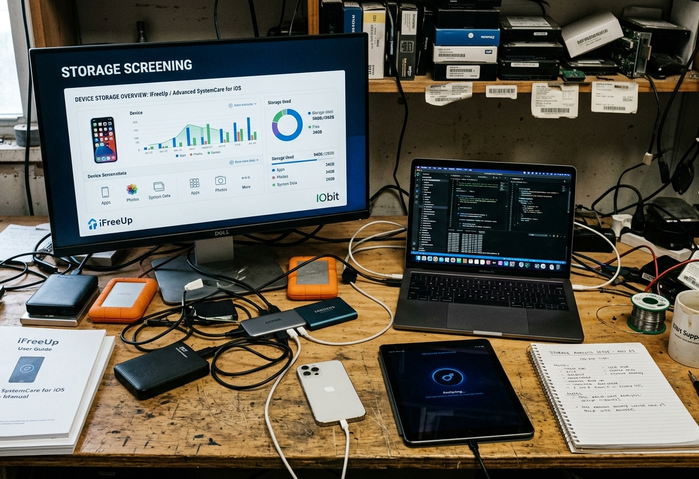
iFreeUp and Advanced SystemCare for iOS sit in this site’s documented scope as legacy products. Before any workflow is treated as currently functional, verify that the installed tool build still lists your device OS and host OS—macOS or Windows, as supported. If the support matrix no longer matches, stop at built-in controls.
Criteria I keep on the desk: the tool states its supported environment, previews categories before deletion, keeps a backup path, and does not claim to bypass modern iOS protections. Reject tools that demand disabling device security without documented cause, or that delete without a category preview.
Backup first via Finder, Apple Devices, or iTunes according to your computer platform and software version. That step belongs upstream of any scan.
Day 5 — Clearing the Decks with Built-In iOS Controls
Built-in controls come first because they change the least and teach the storage math as you go.
Order the sequence from least disruptive to most disruptive:
- Restart the device.
- Wait for Storage figures to recalculate.
- Install applicable iOS and app updates.
- Reassess available capacity before touching downloads or browser data.
After that baseline, remove known downloads from Files, Music, TV, Podcasts, Maps, streaming apps, and any other app that exposes its own download controls. Work one cleanup category at a time. Log before-and-after Storage readings. Allow on the order of 5–20 minutes for indexing and recalculation between categories.
Safari history and website-data removal is available when browser residue is part of the story. The tradeoff is real: site sessions and stored browsing data may be affected. Make that call deliberately.
When an app itself is the problem, Offload App keeps documents and data while removing the binary footprint. Delete App removes the app and local data before a clean reinstall. Deleting an app that still holds needed local documents—when Offload would have freed space and retained data, is another failure case worth avoiding.
One Category Rule
Change a single class of content, wait for recalculation, then decide whether the next class is still justified.
Day 6 — Dockside: Running a Controlled Utility Pass
When built-in steps plateau and a supported desktop utility remains in scope, run a gated pass.
Platform-neutral workflow:
- Confirm compatibility against the tool’s current support list.
- Update the utility from its legitimate distribution channel.
- Connect the unlocked iPhone or iPad with a reliable cable.
- Approve the trust prompt on the device.
- Create or confirm a local backup before scanning.
Consider encryption when the backup must retain supported sensitive data such as saved credentials and Health information.
Require a preview of every proposed category. Avoid selecting unknown databases, active app documents, or broadly labeled system material. Delete only clearly disposable categories. A small or empty scan result is treated as valid when modern iOS protections block protected caches.
After the pass: export or note scan results if offered, eject cleanly, restart the device, and recheck Storage after a wait hovering around 10–30 minutes.
Preview Before Cut
If a category name is opaque, leave it unchecked. Opacity is a stop signal, not a challenge.
Day 7 — Return to Port: Verify, Escalate, or Stop
Verification is a comparison, not a feeling.
Recheck iPhone or iPad Storage after a restart plus a settling period trending toward 10–30 minutes. Compare available space and device behavior with the Day 2 logbook entry. Note what moved and what did not.
If one app continues producing crash records, prioritize updating, reinstalling, or contacting its developer rather than repeatedly deleting diagnostics. Escalation order stays narrow: app update, reinstall, or developer contact before any device-wide restore.
Reserve backup-and-restore or device erasure for persistent, unexplained storage problems after ordinary cleanup and software updates. Those steps carry greater interruption and restoration risk. They are last-resort tools, not a second pass at temporary files.
Does the storage you expect to recover justify moving from targeted cleanup to a full backup-and-restore?