

Contents
- How app sandboxing created the Documents & Data problem
- What the iPhone storage numbers actually represent
- Audit the apps consuming disproportionate space
- Protect local-only content before making changes
- Choose between in-app cleanup, offloading, and reinstallation
- Verify the reclaimed space and watch for rebuilding
- Worked example: Resetting a bloated podcast app safely
How App Sandboxing Created the Documents & Data Problem
iOS applications operate inside private containers. This sandboxing model keeps one app from freely reading another app’s files, but it also gives each app a place to accumulate its own databases, preferences, drafts, downloads, thumbnails, cached media, and temporary working files.

The installed application package may change very little while its container keeps growing. A podcast app downloads episodes. A mapping app stores offline regions. A photo editor retains project assets and rendered previews. Repeated use adds files to the container even when the app itself receives no update.
That history explains why a small application can occupy far more storage than its listed package size suggests. The package is only the executable app and its bundled resources. The container reflects what has happened since installation.
User documents and disposable files share the same space
Some container contents are valuable: an unsynced drawing, a voice recording, a locally stored database, or an imported audio file. Other contents are reproducible, such as cached artwork or a downloaded episode that remains available from its publisher.
iOS may group both kinds under Documents & Data. The label therefore does not mean that every byte is a document, nor does it mean everything listed can be removed safely. Apps using custom file providers may expose different labels or place user-visible files elsewhere, so the storage screen is a starting point rather than a complete file inventory.
Bottom Line: Documents & Data is a container measurement, not a cleanup recommendation.
What the iPhone Storage Numbers Actually Represent
What is the difference between App Size and Documents & Data? App Size generally represents the installed application package. Documents & Data represents local content that the application creates, downloads, indexes, or retains while running.
The boundary is not perfectly consistent because each developer decides how to organize files. Still, the distinction is useful when choosing a cleanup method.
- Messaging apps: attachments, thumbnails, conversations, and local search indexes.
- Podcast and video apps: downloaded episodes, partial downloads, artwork, and playback records.
- Navigation apps: offline maps, route data, and cached map tiles.
- Streaming services: offline playlists, downloaded video, and cached media segments.
- Browsers: website data, cookies, history databases, downloads, and cached resources.
- Creative tools: source media, editing projects, previews, autosaves, and rendered output.
- Social apps: viewed media, drafts, message attachments, and local databases.
iOS can purge some temporary files when storage pressure rises. It cannot be assumed to remove downloads or databases managed by an app. Those items may remain until the user selects an in-app removal command, deletes the associated project, or removes the app and its local container.
Audit the Apps Consuming Disproportionate Space
Begin with the system view, not with an app that merely feels large. Open Settings > General > iPhone Storage, then leave the screen open while iOS finishes calculating categories and sorting the application list. Apple documents the same entry point in Apple's guide to checking storage on an iPhone or iPad.
An early total can move as the device classifies photos, media, applications, and system content. Record values only after the list settles.
Build an app-level baseline
- Open one of the largest applications in the storage list.
- Record its displayed App Size.
- Record its Documents & Data value.
- Note the iPhone’s currently available storage.
- Repeat for the next plausible cleanup target.
Prioritize by proportion and use. A navigation app with large offline maps may be behaving exactly as configured. A rarely used social app with a modest package and a much larger data container deserves closer inspection. The question is not simply “Which app is first?” but “Which app retains more local content than its current use justifies?”
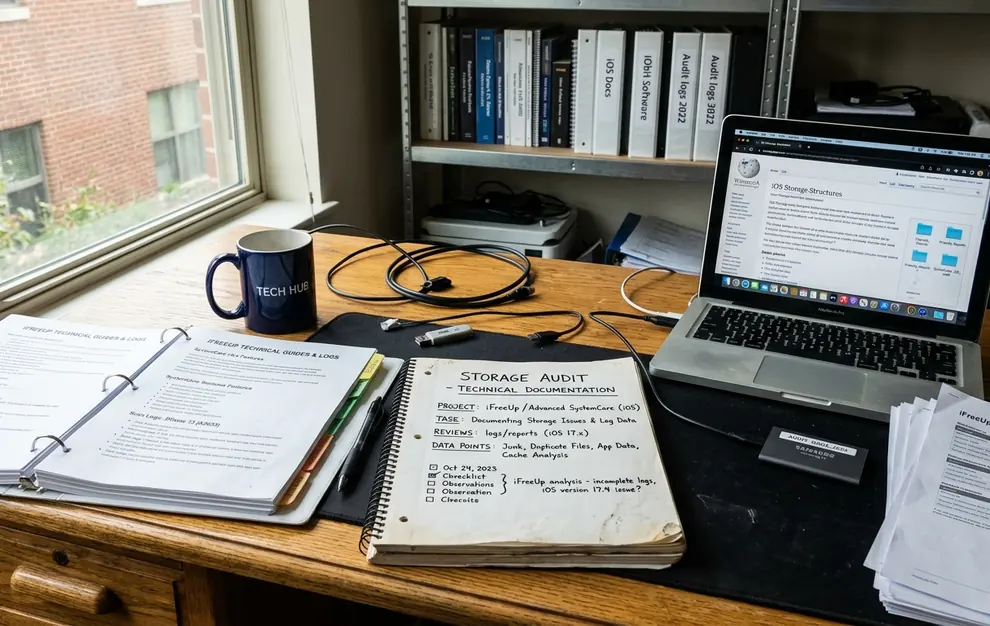
Field Note: Keep the baseline in Notes or a screenshot. Without it, a later change in total free space is difficult to attribute to one app.
Protect Local-Only Content Before Making Changes
Cleanup becomes risky when the storage category hides content that exists nowhere else. Before deleting data, inspect the app itself for unsynced documents, creative projects, message histories, voice recordings, game progress, downloaded files, and app-specific databases.
Do not treat every cloud feature as a backup
Four mechanisms are often mistaken for one another:
- App account synchronization copies selected records to the developer’s service. It may omit downloads, drafts, settings, or imported files.
- iCloud device backup supports device restoration. It is not a normal file browser and does not establish that a particular local item can be recovered independently.
- iCloud Drive stores files that an app explicitly saves there. Content inside a private local container may never reach Drive.
- Manual export creates a separate copy through Files, AirDrop, email, or another destination. For irreplaceable local work, this is the easiest copy to inspect directly.
Open the target app and verify the signed-in account, sync status, and last successful upload if those details are available. Check private feeds, imported media, hidden folders, and projects marked “On My iPhone.” A visible username alone does not establish that all local content has synchronized.
Important: Take extra care with legacy apps that are no longer available from the App Store. Deleting one can remove a local container that cannot be recreated by reinstalling the app.
Choose Between In-App Cleanup, Offloading, and Reinstallation
The correct action follows from two questions: where does the storage reside, and can the content be reproduced? Start with the least destructive method that addresses the measured category.
| Storage condition | Preferred action | Reason |
|---|---|---|
| Regenerable downloads or cache dominate | Use in-app cleanup | Removes selected content while preserving the app, account, and unrelated documents. |
| App Size is large but Documents & Data is needed | Offload App | Removes the application package while preserving its documents and data. |
| Documents & Data is large and the app offers no cleanup control | Delete and reinstall after verification | Removes the package and local container so the app can start with a clean local state. |
| Content is local-only or the app cannot be downloaded again | Export and retain the app | Deletion could make the content or software permanently inaccessible. |
Use in-app controls first
Look for commands such as Remove Download, Clear Cache, Manage Offline Content, or Delete Rendered Media. These controls are appropriate for downloaded episodes, offline playlists, map regions, browser data, previews, and other material the app can regenerate.
Understand what Offload App does
Offload App removes the application package but preserves its documents and data. It is useful when App Size is the main problem or when an infrequently used app should remain ready for restoration.
Offloading is often ineffective against a bloated Documents & Data value because the large container is intentionally retained. Reinstalling the offloaded package reconnects it to that same data.
Reserve deletion and reinstallation for reproducible content
Delete App removes both the package and its local data. Reinstallation can clear a container that has no selective cleanup control, but account content may download again. Residual data can reappear within one synchronization cycle when the service retains it in the cloud; that rebuilding is expected behavior, not evidence that iOS preserved the deleted local cache.
Verify the Reclaimed Space and Watch for Rebuilding
Return to Settings > General > iPhone Storage after cleanup. Allow the categories and application values to recalculate before judging the result from the immediately displayed free-space figure.
- Open the cleaned application’s storage entry.
- Compare App Size with the recorded baseline.
- Compare Documents & Data with the recorded baseline.
- Identify which category changed rather than relying only on total available storage.
- Launch the app and confirm that required documents, projects, subscriptions, and account content remain accessible.
Then use the app normally and revisit its storage entry. Some rebuilding is necessary: databases are reindexed, thumbnails return, and recently accessed media is cached again. A container that grows immediately after opening the app is not automatically defective. The useful test is whether optional offline content stays removed and whether growth corresponds to actual use.
Worked Example: Resetting a Bloated Podcast App Safely
Consider a podcast app with a modest App Size and a much larger Documents & Data entry after months of offline listening. The following sequence can be copied without assuming that every downloaded item is disposable.
- Record the baseline. In Settings > General > iPhone Storage, open the podcast app and write down App Size, Documents & Data, and total available iPhone storage.
- Confirm the account. Open the podcast app, verify the signed-in subscription account, and confirm that synchronization has completed.
- Identify exceptions. Note private podcast feeds, manually imported audio, custom playlists, and episodes no longer available from their publishers. Export or preserve any item that may not return.
- Stop automatic replenishment. Temporarily disable automatic downloads for followed shows so the app does not replace removed episodes during the check.
- Remove reproducible media. Use the app’s download-management screen to delete completed episodes and unwanted offline files. Retain bookmarks or saved episodes if the app treats them separately.
- Measure again. Return to iPhone Storage, wait for recalculation, and compare Documents & Data with the baseline. If it falls substantially, keep the installation and re-enable automatic downloads with a narrower retention rule.
- Escalate only if needed. If Documents & Data remains large and the app provides no cache control, confirm once more that subscriptions and exceptions are protected. Delete the app rather than offloading it, reinstall it from the App Store, and sign back into the verified account.
- Complete the check. Confirm that subscriptions reappear, restore any private feeds, import preserved audio, and download one episode as a functional test. Return to iPhone Storage one final time and save the new App Size, Documents & Data, and available-storage values as the clean baseline.