
How Pro Activation Became Part of iFreeUp
Early iFreeUp builds were distributed under IObit branding during the 2013–2016 product window. Identifying an edition initially appears straightforward: open the utility, inspect its features, and read the product name. Surviving copies complicate that method because the installer, title bar, About box, registration dialog, and purchase email may describe the same installation differently.
The edition history can be reconstructed most reliably from three records: installer strings, About-box version lines, and purchase-mail subject lines. Those records diverge across successive builds. Free, Trial, Pro, and Registered wording rotated independently rather than forming one stable naming scheme.
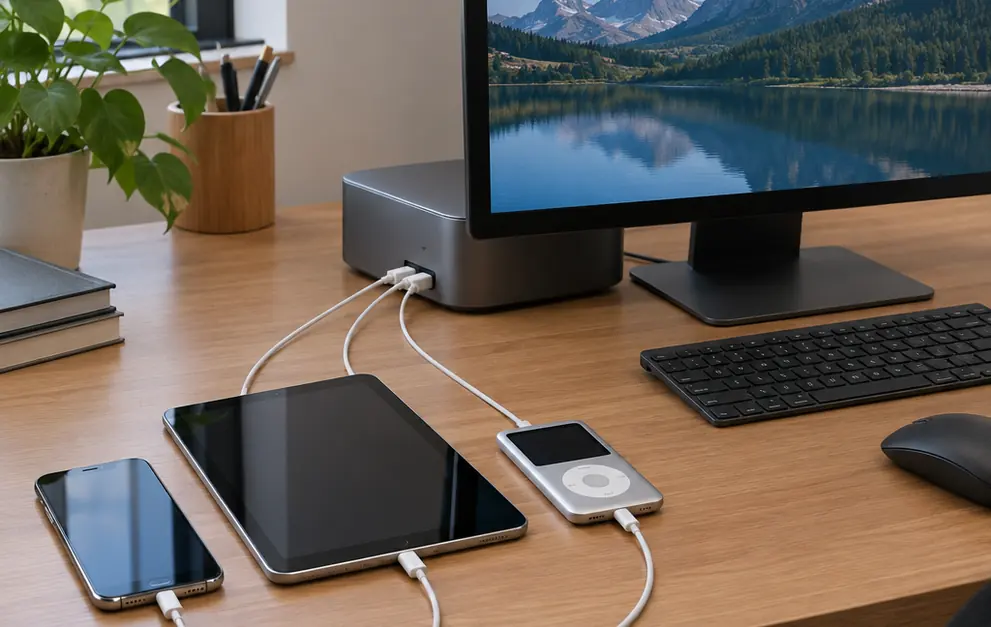
This distinction becomes important when an iPhone, iPad, or iPod is connected by cable. The activation state belongs to the desktop iFreeUp process. The attached iOS device supplies files and storage information for the session; it does not acquire the desktop license. A registered copy on one computer and an unregistered copy on another can therefore inspect the same iPhone during a single 5–40 minute cable session.
Desktop Holds Status
An iFreeUp Pro or Registered badge documents the Windows or Mac application shown on screen. A cable-era screenshot containing an iPhone does not establish any license state for that phone.
The scope here is historical and installation-specific. It describes licensing behavior found in legacy iFreeUp records without assuming that every release used identical labels, feature limits, license terms, or activation infrastructure.
What Free, Trial, Pro, and Registered Labels Actually Identified
What does an edition label prove? Only the interface location that displays it supplies the answer.
Free generally marks the base feature state of the running desktop copy. Trial identifies a temporary evaluation state. Pro or Registered, when shown by the active registration control, indicates a paid activation state for that installation. These definitions deliberately stay close to the program interface because package names and third-party download descriptions often reused Pro even when the launched application opened unregistered.
A marketing name, installer filename, title-bar label, activation-dialog status, and purchase tier are separate evidence. They may refer to one copy while using different words. A registration panel reflects the current installation; a filename saved 30–180 days earlier reflects the package that was downloaded.
| Label encountered | What it indicates | What it does not prove | Next place to verify |
|---|---|---|---|
| Free | Base feature state of the running desktop copy | That the installer package was never marketed or purchased as Pro | Registration or activation panel |
| Trial | A temporary evaluation state reported by the application | Which functions remain available throughout every release’s evaluation period | Status line, registration dialog, and matching version record |
| Pro | A paid-edition indicator when displayed inside the running program | The license term, seat allowance, or feature catalog of another build | Activation status and original order confirmation |
| Registered | Accepted activation status for the displayed installation | Activation on another computer or a continuing right to move the key | Purchase correspondence and license wording |
Filename evidence deserves special caution. “Pro” on a 2014–2016 setup package stops carrying useful edition weight once the newly launched registration dialog reads unregistered. The current in-app status should lead the interpretation, followed by the matching purchase record.
How to Read iFreeUp License Tiers and Seat Limits
Four questions should be separated before diagnosing a license message:
- Serial key: Which character string was issued for activation?
- Paid edition: Which product state did that purchase unlock?
- License term: What period or usage condition did the order specify?
- Seat allowance: How many desktop installations did the purchase permit?
Users often start with the connected-device count because iFreeUp visibly lists an iPhone, iPad, or iPod. That count describes devices available to the utility. The controlling seat language comes from the invoice, order confirmation, license line, or activation panel associated with the Windows or Mac installation.
For a legacy purchase, collect those records before attempting another activation. Read the original order confirmation first, then compare its product wording with the installed version and activation screen. Seat and term language from the original 2013–2016 order outranks a later installer filename when the two disagree.
Order Text Governs
Do not convert attached iOS devices into desktop seats. One computer managing several devices remains one desktop installation unless the purchase wording defines the allowance differently.
Separate the Three Common Cases
A reinstall on the same computer on the same day, a move to another computer 1–24 months later, and an on-screen seat-limit message are separate cases. The first concerns restoration of an existing environment. A later move may involve transfer rights or an older activation record. The third reports what the activation system currently recognizes.
Older activation endpoints are not uniformly reachable, so the displayed symptom alone may leave the cause unresolved. Preserving the order wording allows the issue to be classified without treating every rejected serial as a seat overrun.
Activating a Legitimate iFreeUp Pro Serial
Activation takes place inside the desktop application. Searching iOS Settings on the connected phone, tablet, or media player cannot expose an iFreeUp registration control because the serial belongs to the computer-side program.
- Identify the installed build. Open iFreeUp and record the exact version shown in the About box or equivalent version line. Copy the current Free, Trial, Pro, Registered, or unregistered wording as displayed.
- Retrieve the matching purchase record. Locate the original order confirmation, invoice, or purchase correspondence. Check that its product name and edition align with the installed release.
- Open the desktop registration control. Use the registration, activation, or license command presented by iFreeUp. The wording and placement can change between builds.
- Enter the serial as issued. Preserve capitalization and separators when the field expects them. Remove accidental spaces before the first character and after the last one.
- Submit the registration. Allow the same launch session to return a result before closing the program.
- Confirm the status change. Recheck the title bar, status line, or activation dialog. A successful submission is established when the displayed edition or registration state changes during that session.
When the Serial Is Rejected
Check transcription first. Similar-looking characters, omitted separators, and pasted whitespace can produce an immediate rejection. Next, compare the purchase name with the installed product, then compare the purchased edition or release with the running build. Only after those checks should a seat condition or expired term become the working explanation.
Keep the serial private. Store it with the associated order details, preferably alongside the matching installer, and exclude it from screenshots, forum posts, shared diagnostic archives, and filenames. A serial without its order context is also less useful later because it does not explain the purchased term or desktop allowance.
Where the Trial Ended and the Paid Edition Began
Legacy iFreeUp interfaces can present a paid boundary in several ways. A control may remain visible while locked, operate only during an evaluation period, stay restricted until registration, or become fully enabled after activation. The same cleanup control can occupy more than one of these states across different builds.
That variation affects descriptions of iOS junk-file cleanup, storage recovery, performance tools, and file management. Assigning any one function exclusively to Pro requires evidence from that version’s own interface. A badge from another release cannot serve as a feature catalog for the build under examination.
Compare Like with Like
When two installations behave differently, record four matching conditions before attributing the difference to licensing:
- the exact iFreeUp version;
- the desktop operating system;
- the connected-device state; and
- the edition or registration label shown in the application.
Consider one installation that displays a cleanup command and another that omits it. Different iFreeUp versions may explain the interface change. A disconnected device may suppress context-sensitive controls. Operating-system compatibility can affect loading or device detection. Licensing becomes the stronger explanation only after those conditions align and the edition states differ.
First-run behavior also matters. An installer whose filename includes Pro can finish setup and still open unregistered during the first 2–10 minutes after installation. The activation dialog at that point carries more evidentiary value than the package filename.
Match Before Blaming
Capture the version, operating system, device connection, and edition label from both copies. A grayed control becomes meaningful license evidence only within that matched comparison.
Building a Reliable Record of a Legacy iFreeUp Installation
A legacy installation should be documented while it still opens. The record can remain compact, provided it captures the fields that distinguish an edition mismatch from a seat issue, an expired evaluation, or a compatibility failure.
Preservation Checklist
- Record the exact iFreeUp version from the running application.
- Copy the edition wording exactly, including Free, Trial, Pro, Registered, or unregistered status.
- Note the desktop operating system used for that launch.
- Capture the activation state and any status-line wording.
- Identify the installer source and preserve the original package filename.
- Retain the order confirmation, invoice, and relevant license text.
- Transcribe any displayed license or seat message before dismissing it.
Store the original installer with the purchase correspondence so the package can be tied to its commercial context. Keep the serial in a private record rather than embedding it in a screenshot. A public image can show the version, edition wording, and diagnostic message while the key field remains cropped or covered.
This record changes the troubleshooting process. A purchase name that differs from the installed edition points toward a product mismatch. A matching edition with a seat message directs attention to the desktop allowance. Trial wording supports an evaluation-state explanation. A registered label accompanied by startup or device-detection problems shifts the inquiry toward compatibility rather than activation.
Capture Before Reinstall
Take the version and status evidence before removing the program. The working installation may contain the only surviving display of its exact edition state.
The timing is unforgiving: a reinstall started just 1–15 minutes after removal can erase the clearest evidence of the configuration that had been working.