I treat an iOS media transfer as a pipeline with one completion test. Usable, verified files must sit at the intended Mac or Windows destination. The progress indicator can close while indexing, preview generation, or a missing original still runs in the background.
Photos, video, and transferable audio moving from an iPhone or iPad to a desktop computer sit inside this comparison. App-container dumps and full-device backup images sit outside it. Supervised-device file policies, encrypted full-device backups, and network-share destinations sit outside it as well.
Contents
- When the Route Leaves the Archive Unusable
- USB, Local Wi-Fi, and Cloud as Distinct Pipelines
- Dense Photo Libraries and Sequential 4K Clips
- Host Work After Mac and Windows See the Device
- A Frozen Source Set for Every Connection Method
- Matching USB, Wireless, and Cloud to the Media Job
- One Mixed Camera Roll onto a Windows Desktop
When the Route Leaves the Archive Unusable
I timed a camera-roll export the night before a storage cleanup and found two 4K clips that would not open, even though the importer had already dismissed. The folder looked populated. The wipe could not start.
That is the cost I care about: wall-clock time, and the confidence that the desktop copy is the copy. A mixed camera roll of several thousand stills plus a handful of 4K clips remains incomplete until those files open at the desktop destination, even if the importer dismissed 5–25 minutes earlier.
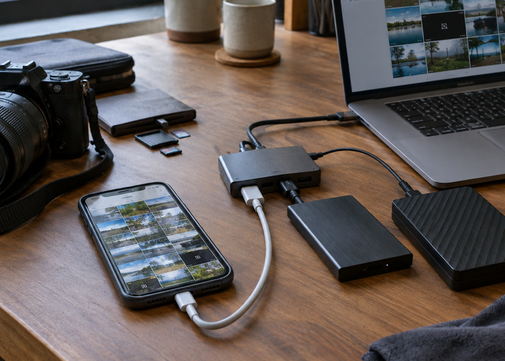
Name the destination path first. Then pick USB, local Wi-Fi, or cloud against that definition. I record completion only when stills, clips, and ordinary exportable audio open in the folder or library I chose.
USB, Local Wi-Fi, and Cloud as Distinct Pipelines
Does the connector shape set the speed? I get that question every time a Lightning cable sits next to a USB-C cable on the same desk.
The cable path from iOS storage to disk
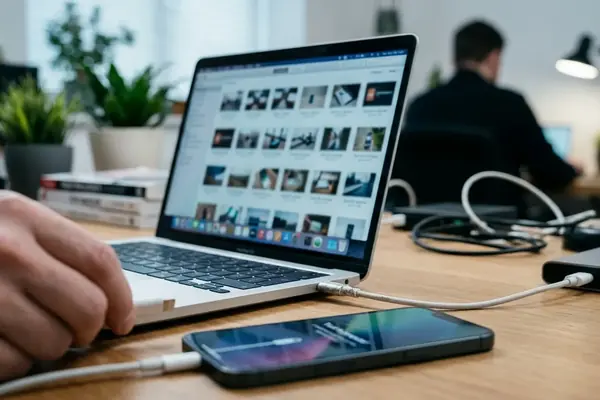
I trace USB from iOS storage through the cable, the negotiated port connection, the import software, and the destination filesystem. The device, cable, adapter, and host port all affect the negotiated path. Drawing on the logged Lightning link through the iPhone 14 generation, 480 Mbit/s USB 2.0 is the rate I write down for those phones.
USB-C iPad Pro hardware and 2023 iPhone 15 Pro-class devices can negotiate 5–10 Gbit/s only when the cable, adapter, and host port all allow that link. Log 2014-era desktop iOS cleanup utilities by exact build and supported Windows or Mac version, because each build keeps its own import path.
The local wireless session
Local Wi-Fi transfer is a device-to-desktop workflow. Its practical limit includes wireless conditions, application overhead, and whether the computer and the device remain available. A quiet 5 GHz LAN still shares airtime with the import application’s own protocol and with any lock-screen or sleep policy on either end.
Cloud as two sequential moves
Cloud sync splits into an upload from the phone and a download onto the desktop. A desktop cloud client that already holds materialized originals can show the library in under 60 seconds. A first retrieval of the same multi-tens-of-gigabyte roll on a 50–100 Mbit/s residential link commonly occupies 40–180 minutes across upload and download.
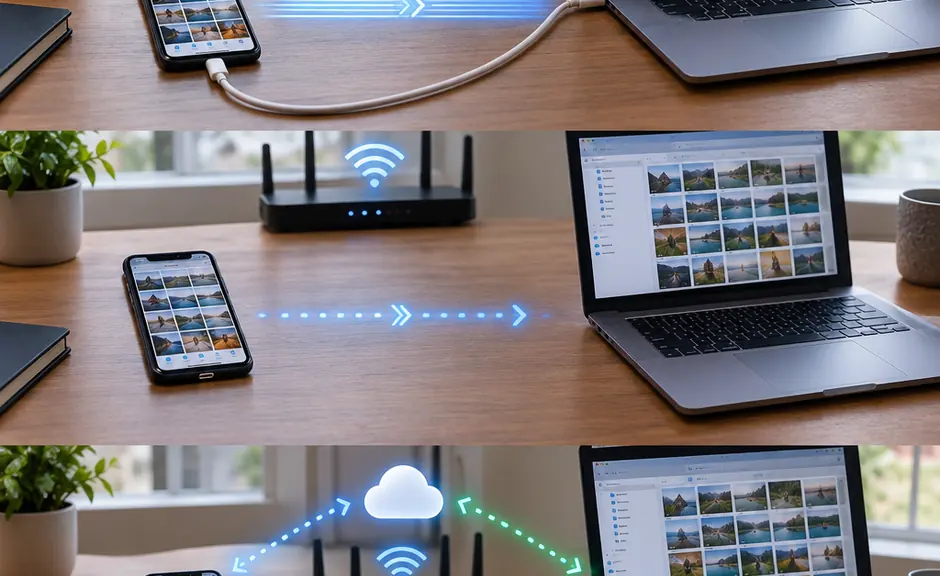
Cloud availability state belongs in the same log as the cable and the host port. I write down whether originals were already on the desktop, whether Optimized Storage was on, and whether the client had to hydrate files during the run.
Dense Photo Libraries and Sequential 4K Clips
Large sequential files keep a transfer path occupied efficiently. Small-file libraries repeatedly incur file creation, naming, metadata, and directory-update work. Those are different bottlenecks, so I time them as different jobs.
A several-minute 4K HEVC clip is one sequential object of multiple gigabytes. A 2,500-photo roll is thousands of 2–8 MB JPEGs, often plus a short MOV sidecar per Live Photo. Live Photo-style pairs and edited variants count as extra objects because the Photos database stores them that way.
Thumbnail generation, media analysis, preview creation, and catalog updates continue after raw bytes have arrived. On a spinning disk or a volume with little free space, directory-entry, thumbnail, and catalog work for a many-small-file set often continues 8–40 minutes after the last payload byte arrives.
Sidecar Object Count
Count Live Photo pairs and edited variants as separate objects in the source inventory. A stills-only headcount understates create work on the destination volume.
I start the stopwatch when the first byte leaves the device. I stop it when two stills and two clips open from the destination, not when the importer’s bar hits the end.
Host Work After Mac and Windows See the Device
After the cable or radio, the host still has work. Device discovery, file enumeration, destination writes, thumbnail creation, library ingestion, search indexing, and security scanning sit in that order. Each stage can hold the volume after the importer reports done.
Two import tools on the same computer can perform different amounts of cataloging and preview work. Operating-system effects and application effects are separate clocks. I keep the host, the drive, and the OS build fixed when I change only the importer.
Copying into a managed photo library differs from copying ordinary files into a folder. On a 20–40 GB mixed camera roll, Windows Search indexing and real-time scanning can keep the destination volume active 10–30 minutes after Explorer reports the copy complete. Folder copy onto an internal SSD and ingest into a managed photo library on the same host produce different timings; the library path adds catalog writes and preview generation that a bare directory copy skips.
Finder on a Mac and Explorer on Windows both enumerate the device before the first destination write. That enumeration is visible as a pause with no progress bar. I include it in elapsed time because the job has already started.
A Frozen Source Set for Every Connection Method
Begin with one representative test set. Use the same source photos, large video clips, and genuinely exportable audio for every connection method. Library drift between runs will masquerade as a route difference.
Record the iPhone or iPad model, host platform, software version, cable or adapter, port used, destination drive, local network conditions, and cloud availability state. That list is the minimum log. Confirm that source originals are present on the device before timing.
Off-Device Originals
If iCloud Optimized Storage is on, a 4K original that is not on-device can insert a per-clip download of 20 seconds to more than 4 minutes before the export to the desktop even starts. Hydrate originals on the phone first, then start the clock.
Repeat the same route until elapsed times sit inside a 3–6 minute band on an unchanged mix. Treat a reconnect, a thermal drop, or destination-drive contention as an anomaly rather than folding it into the result. Those bands hold only when the source mix, cable, and destination volume stay unchanged between runs.
An advanced check is to open the destination in a second tool after the importer exits. If Windows Search or a Photos library is still writing previews, keep the timer running until those writes settle and the sample files open.
Matching USB, Wireless, and Cloud to the Media Job
USB is the first candidate for large, local, interruption-sensitive exports. Verify cable and port compatibility before the session. USB is the first candidate when the job is tens of gigabytes of 4K and the session cannot be interrupted for 20–90 minutes, provided the cable and host port match the device’s negotiated USB generation.
Local Wi-Fi is a convenient option for modest transfers where cable access matters more than maximum sustained throughput. It is the convenience path for selections of a few gigabytes or less on a quiet 5 GHz LAN.
Cloud sync is the continuity path across devices and locations, provided upload status, original-file availability, bandwidth, and desktop download completion are visible. Watch both the upload from the device and a fresh desktop download to completion.
| Job | USB cable | Local Wi-Fi | Cloud sync |
|---|---|---|---|
| Large 4K clips | First candidate when cable and host port match the negotiated USB generation | Acceptable for a few clips on a quiet 5 GHz LAN if both endpoints stay available | Continuity path when upload and a fresh desktop download can be watched |
| Dense still libraries | Handles object-create load when the destination volume has free space | Convenience path for a few gigabytes or less on a quiet 5 GHz LAN | Requires visible original-file availability and bandwidth |
| Mixed camera roll | First candidate for tens of gigabytes in a 20–90 minute uninterrupted session | Use when avoiding the cable matters more than sustained rate | Use when upload status and desktop download completion stay visible |
Pause Desktop Sync
Pause other desktop sync clients for the 20–90 minute test window so destination-drive contention does not land inside the USB or Wi-Fi timing.
One Mixed Camera Roll onto a Windows Desktop
Here is the case I copy when I need a mixed camera roll off an iPhone and onto a Windows desktop, with enough local disk space for three test folders.
Constructed source set: about 2,800 stills, 12 Live Photo pairs, and six 4K clips, 38–45 GB total, copied into three empty folders on the same internal SSD.
- Ensure the original media is available on the phone. Pause unrelated synchronization. Record source file count and total size in the log next to the iPhone model and iOS version.
- Create three empty folders on the same internal drive, named for USB, Wi-Fi, and cloud, so destination hardware remains constant.
- Connect with the cable and host port that match the phone’s negotiated USB generation. Import into the USB folder. Keep the timer running through enumeration, copy, and any Explorer indexing. Stop when two stills and two 4K clips open from that folder.
- Disconnect the cable. On a quiet 5 GHz LAN, send the same frozen set into the Wi-Fi folder. Keep both endpoints awake. Stop on the same open-file test.
- Clear the desktop cloud cache. Watch the upload from the phone, then the download into the cloud folder. Time the pair as one job. Stop on the same open-file test.
- With three verified folders on disk, delete the phone copies and run iFreeUp against the freed device storage.
Write the three elapsed times beside the cable identity, the 5 GHz network name, and the cloud client’s cache state. Keep the USB folder as the working archive when the session had to finish in one sitting, and keep the log with the folders so the next mixed roll on that same Windows desktop starts from a known baseline.