An iPhone can look idle while iOS handles refresh requests, location events, uploads, indexing, and account synchronization. Reducing that workload requires a measured audit. Broadly disabling services may improve one symptom while breaking delivery alerts, navigation, or photo backups.
Why an Idle iPhone Is Still Working
Apple's guidance on Low Power Mode documents that the feature reduces Background App Refresh and some network activity while enabled. That makes Low Power Mode useful for diagnosis, but temporary by design. Normal behavior returns when the mode is switched off or automatically disengages after charging on supported iOS releases.
Background activity covers work performed while an app is no longer visible. It includes scheduled content refreshes, cloud uploads, location callbacks, mail retrieval, media downloads, database maintenance, Spotlight indexing, and photo-library analysis.
Those tasks compete for processor time, memory, storage access, and network capacity. When several coincide, a user may notice delayed input, warmth, sluggish transitions, unexpected network traffic, faster battery drain, or apps reloading after being revisited. The symptoms identify a workload worth inspecting; they do not identify its source by themselves.
Low Power Test
If the phone becomes steadier with Low Power Mode enabled during an otherwise normal routine, background work deserves closer inspection. Treat the result as a lead rather than a permanent configuration.
The Background Systems That Affect Responsiveness
Background App Refresh is one subsystem among several. Push delivery, Core Location, audio playback, cloud clients, widgets, Live Activities, downloads, and iOS maintenance use separate control surfaces and execution rules.
When an app moves off-screen, iOS typically suspends it quickly unless it holds an allowed task or entitlement-backed mode. Navigation may continue receiving location events. An audio app may maintain an active playback session. A download may receive limited completion time. Most ordinary apps remain suspended until the system grants a permitted event or the user opens them again.
Push notifications illustrate the separation clearly. Apple Push Notification service can deliver a notification while Background App Refresh is disabled. Delivery briefly wakes the device as needed; it does not grant the application continuous runtime. The same refresh switch also leaves active turn-by-turn navigation and an in-progress audio session intact.
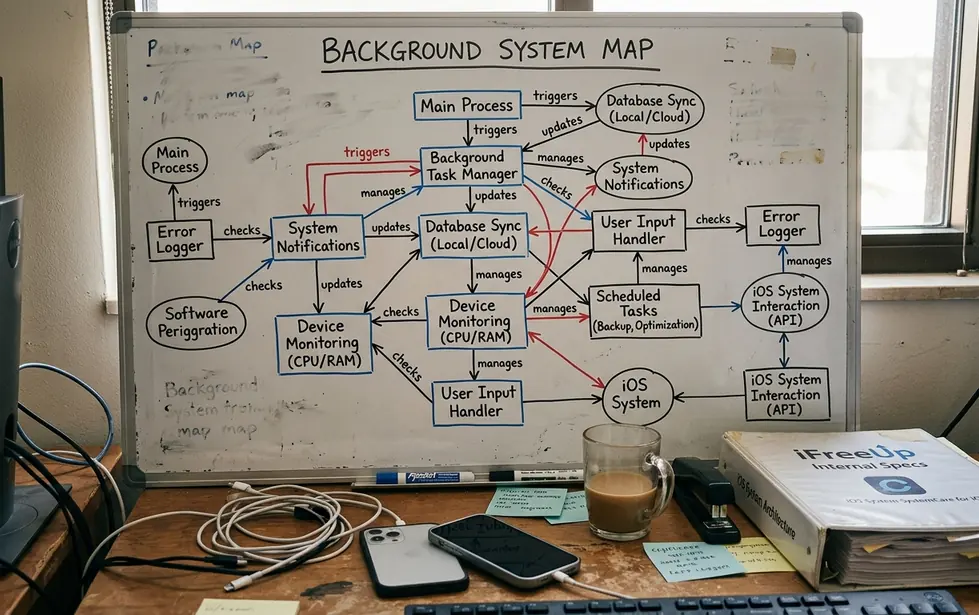
System work matters too. Photo analysis and Spotlight reindexing can continue across several charge and idle periods after a major iOS update, cloud restoration, or bulk photo import. A short-lived spike during that period should be classified separately from a recurring app entry.
Find the Source Before Changing Settings
The common starting question is simple: which process deserves restriction? Settings > Battery provides the most useful first pass because it places app activity beside recent battery use.
Capture a Normal Baseline
- Open Settings > Battery.
- Review both the recent 24-hour view and the longer 10-day view when those options appear.
- Expand activity details and look for apps labeled Background Activity.
- Compare background time with screen-on use. A navigation app used during a long trip has a straightforward explanation; an unfamiliar overnight entry needs more attention.
- Write down one or two repeat names instead of changing every permission immediately.
Use a normal day that includes commuting, messaging, charging, and overnight idle. Recent heavy use can distort a short window, especially after recording video, importing photos, downloading media, or running navigation.
Reconstruct What Changed
Check the event immediately preceding the symptom. Useful candidates include an iOS update, an app update, a cloud restore, a large upload, a photo import, or a navigation session that ended unexpectedly. Warmth following a large restore has a different diagnostic meaning from warmth that begins every night when one sync client runs.
A controlled comparison can strengthen the finding: repeat the same routine with Low Power Mode off and then on during the same day. Keep app versions, account state, and network conditions as stable as practical.
Observe Before Editing
Record the app name, date, visible symptom, and suspected subsystem. That short note prevents a later settings change from becoming impossible to trace or reverse.
Configure Background App Refresh App by App
Open Settings > General > Background App Refresh. Depending on the iOS release and device configuration, the top-level control may offer Off, Wi-Fi, or Wi-Fi & Cellular. Older and newer releases may use slightly different wording.
The global control has a wide blast radius. Per-app switches support a safer progression path because they preserve refresh for applications whose content should be ready before launch.
Start With Low-Value Refreshes
Rarely opened shopping, social, news, game, and promotional apps make practical first candidates. Their feeds can usually update when opened without affecting a time-sensitive workflow.
- Select a small first batch of low-value applications.
- Disable Background App Refresh for those entries.
- Use the phone through a complete workday and overnight cycle.
- Open each critical app once on Wi-Fi and once on cellular.
- Check whether stale content, delayed syncing, or longer launch preparation remains acceptable.
Some apps do not display a per-app row. The list reflects applications that declare compatible background modes, and certain system or preinstalled clients expose no user-facing switch. Absence from the list does not establish absence of all background behavior.
When the Global Switch Helps
Turning refresh off globally can serve as a short isolation test when the Battery screen does not identify a clear offender. Restore the global setting afterward, then narrow the configuration app by app. This preserves useful refresh while reducing the applications with little reason to run before launch.
Reduce Location Work Without Breaking Essential Features
Location permissions deserve a separate audit because background location events can continue independently of ordinary refresh. Open Settings > Privacy & Security > Location Services, then inspect applications individually instead of switching off Location Services for the entire phone.
Read Each Permission in Context
- Never: blocks location access for the application.
- Ask Next Time or When I Share: requires another decision when the app requests access.
- While Using the App: allows access while the app is actively in use, subject to the behavior supported by that iOS version.
- Always: permits eligible background location events after the app leaves the screen.
Exact labels vary slightly across iOS releases. A separate Precise Location switch may also appear. Weather, retail, and local-search apps often work adequately with approximate or foreground-only access. Navigation, safety sharing, delivery tracking, and deliberate location-based automation require closer testing.
Reserve Always access for a feature that the user can name and expects to operate in the background. After changing an app from Always to While Using, verify it during the next few real trips, deliveries, or automation triggers. A permission screen cannot confirm whether the complete workflow still functions.
Arrow Context
A brief location arrow shows recent location use within the system indicator window. It does not measure duration, energy cost, or misconduct on its own.
Tame Syncing, Notifications, Widgets, and Mail
A reader may disable Background App Refresh and still receive alerts, see uploads continue, or notice a widget update. Those results are expected because each feature has its own scheduler and permission model.
Separate Alerts From Refresh
Review notification permission and presentation under Settings > Notifications. Disabling alerts can reduce interruptions, while Background App Refresh controls whether eligible apps prepare content outside the foreground. One control does not substitute for the other.
For a noisy app, first decide whether the alert itself has value. Then inspect sounds, badges, Lock Screen delivery, scheduled summaries, and any in-app notification categories. This approach preserves account security or delivery alerts while removing promotional traffic.
Set Mail Delivery by Account
Mail behavior depends on the account type. Accounts supporting Push may deliver messages immediately. Fetch-capable accounts may offer schedules such as every 15 minutes, every 30 minutes, hourly, or manually, depending on the iOS version and provider.
Keep immediate delivery for accounts tied to urgent messages. Less important archives and newsletters can fetch less often or update when Mail opens. Account-level choices matter here; a single Mail setting may not represent every configured provider.
Inspect the Queues That Users Forget
- Open the photo service and check whether a large upload backlog remains.
- Inspect file-sync clients for pending folders, conflicts, or offline copies.
- Review automatic podcast and music downloads.
- Remove widgets that provide little value, especially frequently refreshed transit, sports, or fitness views.
- End Live Activities that no longer correspond to an active event.
- Check app-specific settings for offline maps, automatic media downloads, and preloaded feeds.
When an app shows a multi-gigabyte upload queue, let it work on Wi-Fi while charging. Interrupting the queue repeatedly can extend the period of network and storage activity.
Maintenance Steps That Help—and Shortcuts That Do Not
Begin maintenance with reversible steps. Restart after a persistent thermal, reload, or synchronization anomaly. Install iOS and app updates that remain compatible with the device, then confirm that usable storage headroom remains available before considering any reset.
After a major iOS update, allow a settling period in the ballpark of 24 to 72 hours of mixed charging and idle time for indexing and photo processing. The same allowance applies after a cloud photo restoration or large import. Repeated activity beyond that window deserves another Battery audit, especially when the same third-party app appears each day.
Use Force-Quit for a Specific Fault
Force-quit a single app when it freezes, displays stale state, or clearly continues a malfunctioning task. Swiping every app out of the app switcher after each use fails as a routine background strategy. Suspended apps already lack continuous execution, while repeated cold launches can create extra loading and initialization work.
A reset carries much broader consequences. Reset All Settings can return network, privacy, keyboard, and Home Screen-related preferences to defaults. It belongs after targeted changes, restarts, updates, storage cleanup, and observation have failed to isolate the behavior.
Reset Boundary
Before any reset, preserve the diagnostic note and verify backup integrity. A reset performed without a baseline removes evidence while expanding the number of changed variables.
Build a Faster Configuration You Can Maintain
A maintainable configuration follows a controlled rollout: capture current behavior, restrict the clearest one or two offenders, use the phone normally, and restore any feature whose loss outweighs the improvement.
Use a Repeatable Audit Cycle
- Record the first unexplained Background Activity entry and its date.
- Classify the likely mechanism as refresh, location, sync, notification delivery, media, or system maintenance.
- Change one narrow control.
- Observe a normal workday and overnight idle period.
- Check Battery again before making the next edit.
- Reverse the change if it disrupts alerts, navigation, uploads, or content freshness that matters.
Repeat the audit after a major iOS upgrade, restoration from backup, installation of many apps, or a change in location-dependent routines. After a restore or upgrade, wait until the device has completed a full 10-day Battery history window before treating that view as a stable long-term baseline.
Success appears as steadier input, fewer unexplained background entries, acceptable battery behavior, and intact essential services. Open Settings > Battery now and write down the first app listing unexplained Background Activity before flipping any switch.