
The Slowdown Is a Stack, Not a Mystery
An aging iPhone does not slow down because a single hidden switch flips. It slows down because several pressures arrive together and compound. Storage fills up. The battery loses capacity. RAM limits tighten relative to what current apps expect. App data swells. Modern webpages demand more than the device was designed to give.
The problem is better treated as a technical analysis rather than a list of quick fixes. The argument is opinionated on purpose: no single cleanup step restores a device that is fighting five constraints at once.
It also helps to separate two things that feel identical but are not. Perceived slowdown is what the user notices, longer app launches, keyboard lag, photos that load a beat late, Safari tabs that reload when revisited, file transfers that crawl. Measurable failure is when those delays can be reproduced and tied to a cause. Most diagnosis lives in the gap between the two.
Hardware Aging Changes the Rules Before iOS Does
Battery aging is a performance variable, not only a battery-life inconvenience. As cells age chemically, they struggle to deliver peak current without voltage sag under load. That sag is the part most users overlook.
Apple's own explanation is direct: on devices with chemically aged batteries, iOS may manage peak performance to help prevent unexpected shutdowns. The throttling is a protective response, not a defect. Activity data indicates that capacity loss becomes noticeable after roughly 18 to 24 months of daily charging, which is also when many users first describe their phone as "getting slow."
Storage behavior deserves equal attention. When internal storage runs near full, the device has less room for caches, temporary files, downloads, and update staging. Storage pressure tends to increase once free space is hovering around 2 GB on 32 GB models, and the symptoms there look a lot like the battery symptoms above, which is exactly why diagnosis matters.
Field Note: A device that throttles only under heavy load, like opening the camera with a low battery, is usually telling you about voltage sag, not storage.
For the official wording on this behavior, see Apple's iPhone Battery and Performance guidance.
The Software World Moves Faster Than Legacy Devices
App ecosystems are a major and underrated cause of slowdown. Developers build for current hardware first and legacy hardware second. The same app version that runs cleanly on a new model can stutter on a device in the ballpark of four years old, even though the binary is identical.
Workload grows quietly. Photo libraries get richer. Messaging databases get heavier. App caches balloon. Webpages ship more scripts and larger assets. Cloud sync runs in the background while the user is doing something else. Each of these adds load the device did not carry on the day it shipped.
There is a reasonable counter-argument: this device was fast on an earlier iOS version, so the fault must be the software update. That observation is correct but incomplete. The surrounding workload changed even when the device looks the same. A webpage built in the ballpark of 2019 and a current webpage are not the same workload, and forum feedback confirms that lag persists on devices with intact batteries when RAM is exhausted by modern web pages. The hardware did not get slower so much as the world got heavier.
Storage Cleanup Helps, but It Is Not a Time Machine
It is worth defining iOS junk in plain technical terms rather than borrowing a generic cleanup checklist. The category covers app caches, temporary downloads, crash logs, duplicated media exports, browser data, stale message attachments, and orphaned documents left behind by removed apps.
These files are real and they grow faster than most users expect. App cache files can accumulate to several hundred MB within on the order of 30 days of heavy photo use, and message attachments are a frequent quiet offender.
Cleanup tools such as iFreeUp or Advanced SystemCare for iOS help most when the bottleneck is one of three things: storage pressure, bloated app data, or file-transfer clutter. In those cases, freeing space and offloading media to a computer produces a change the user can feel.
Be honest about the ceiling, though. Cleanup cannot repair a worn battery, add RAM, replace the processor, or grant modern optimization to an unsupported iOS version. Cleanup yields no change on models already running unsupported iOS versions, and pretending otherwise sets the wrong expectation.
Diagnose Before You Delete
Deleting things feels productive, so most people start there. A better first move is to check battery health and look for any peak performance management message. If the device is throttling to avoid shutdowns, no amount of freed storage fixes the lag.
Next, read the iPhone Storage screen qualitatively rather than chasing a single number. The categories, apps, photos, messages, system data, and downloaded media, usually point straight at the real bottleneck. A messages category larger than several apps combined tells its own story.
Then watch the pattern of when the slowdown appears:
- Slow only while charging or when the device is warm, which suggests thermal or battery behavior.
- Slow right after opening several Safari tabs, which points to RAM and web workload.
- Slow during photo sync, which points to background cloud activity.
- Slow only after a specific app updated, which points at that app rather than the device.
The timing of the lag is often more diagnostic than any single storage figure.
A Practical Tuning Order for Older iOS Devices
Sequence matters. Heavy cleanup before a backup is how people lose photos, so the order below is deliberate.
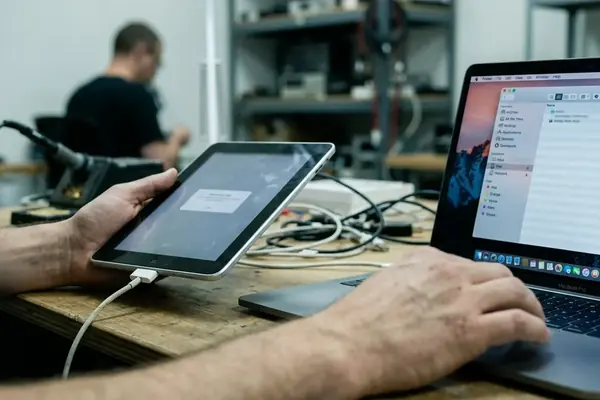
- Back up first. Use iCloud, Finder on a Mac, or iTunes and the Apple Devices app on Windows. A trusted file-transfer workflow counts too. Nothing else in this list should happen until a current backup exists.
- Free storage deliberately. Remove unused apps, offload large videos, export old photos to a computer, clear Safari data when that is acceptable, and review downloaded music, podcasts, and offline maps. These caches reclaim space that the storage screen does not always surface clearly.
- Use iFreeUp-style workflows where appropriate. Transfer photos, videos, music, and documents to a computer, review app junk, and reduce clutter that iOS does not expose directly. This step is most useful after the obvious large files are already handled.
Run the device for a day after each major step. Tuning blindly makes it impossible to tell which change helped.
Where Cleanup Ends and Replacement Begins
Software cleanup is useful work, but it is not hardware refurbishment, and a credible analysis has to say so plainly.
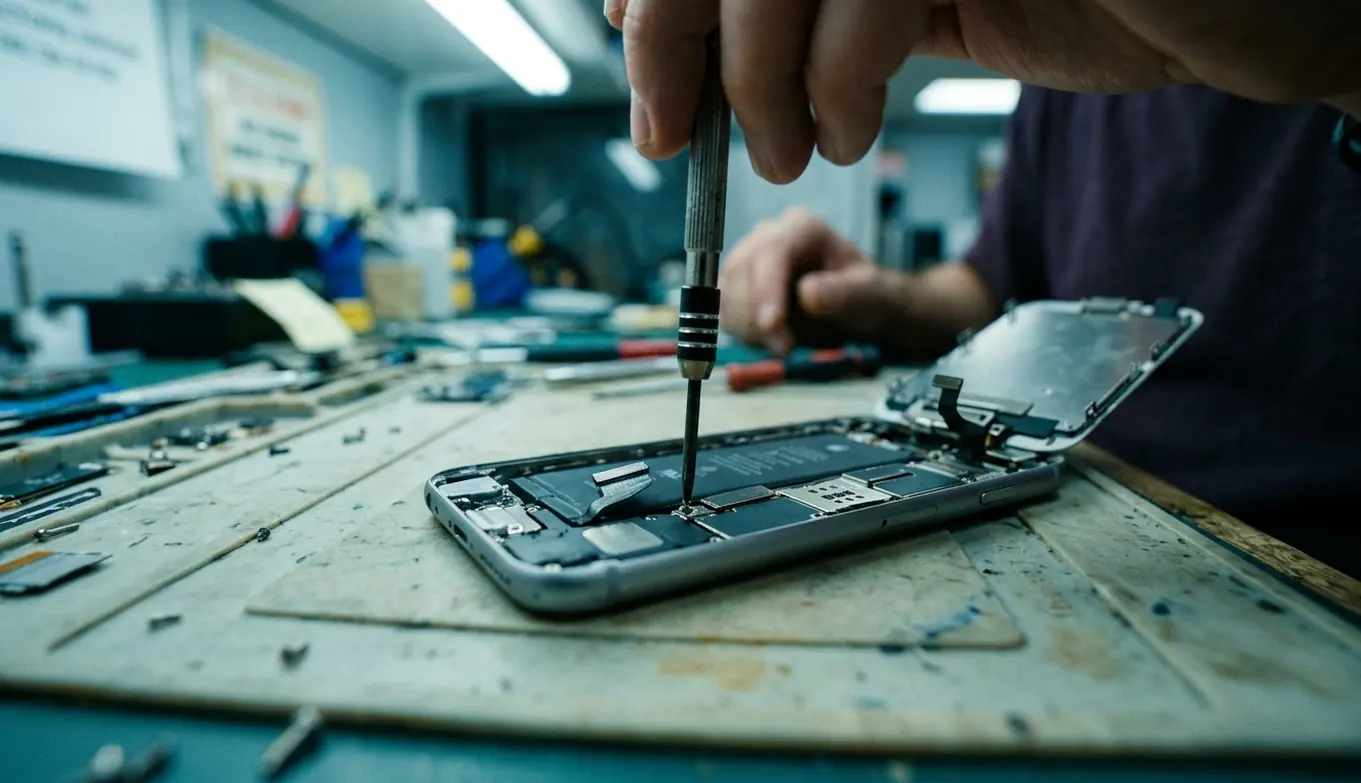
Battery service can matter more than file cleanup in a few clear situations. Long-term use often shows that battery service is warranted when unexpected shutdowns are trending toward more than once per week. Severe throttling messages and poor runtime alongside lag belong in the same category. None of those are storage problems.
When Replacement Becomes Rational
Replacement stops being premature and starts being sensible when the device can no longer do its job. Watch for an unsupported iOS version, apps that refuse to install, or not enough storage to stage essential updates. Persistent lag that survives a full cycle of backup, cleanup, restart, and minimal app testing is the clearest signal of all.
Bottom Line: Cleanup buys time and recovers real space, but it cannot reverse battery chemistry or add RAM. Diagnose first, tune in order, and treat replacement as a rational outcome rather than a failure.

One honest qualifier applies to all of the above: these patterns come from observed behavior on aging devices under daily use, and an individual device with an unusual app mix or storage tier may not match every example here.