

A slow iPhone rarely announces what it needs. Users see lag, full-storage warnings, failed updates, app crashes, or slow transfers, and they reach for a single fix—usually a cleanup. Sometimes that works. Often it solves the wrong problem.
The confusion is understandable. Two very different conditions can produce overlapping symptoms, and iOS hides most of the machinery that would tell you which condition you're facing.
Why the Same Slow iPhone Can Point to Two Different Jobs
This article uses one comparison frame throughout. Storage cleanup addresses capacity pressure: how much room remains and what fills it. Performance optimization addresses behavior: responsiveness, background workload, stability, thermal state, and overall system efficiency. They are not the same job.
The two areas overlap, which is why people conflate them. A device starved of free space can feel slow. A device with plenty of space can also feel slow for entirely unrelated reasons. Treating both as identical leads to wasted effort.
iOS makes the distinction sharper than it would be on a desktop. App sandboxing limits what users and utilities can directly remove, so the levers available for capacity are different from the levers available for behavior. The storage view in Settings lists categories updated within the last day or so of device activity, which gives a starting read. A separate signal—lag that persists after a restart cycle hovering around 48 to 72 hours, points away from storage and toward workload.
When storage warnings appear alongside unchanged app launch times, the two layers are sending different messages. Read them separately.
What Storage Cleanup Actually Changes on iOS
Storage cleanup means reclaiming device capacity. In practice that covers photos, videos, downloads, app documents, offline media, old message attachments, duplicate exports, and unnecessary backups. The goal is straightforward: free space goes up.
iOS sets clear boundaries on how you do this. You can manage app data, offload apps, delete media, review large attachments, and move files through a Mac or Windows transfer workflow. You cannot freely browse every system cache, and no standard interface lets you.
Where to start
Apple's storage panel is the right first reference. The Settings storage view breaks down capacity by category and surfaces specific recommendations. For a structured walkthrough of those panels, see Apple's iPhone and iPad storage guidance.
Two actions tend to produce visible results. Offloading apps larger than on the order of 200 MB through Settings reduces reported capacity within one sync cycle. Reviewing message attachments—the panel covers items from the prior 90 days, often surfaces large media you forgot existed.
One limitation matters here. Cleanup is limited to content exposed in standard iOS storage panels. If something doesn't appear there, no consumer workflow reaches it safely.
What Performance Optimization Changes Instead
Performance optimization improves how the device behaves under normal use: app launch responsiveness, multitasking stability, background activity, heat, battery strain, network behavior, and OS reliability. None of that is about free space.
The tuning actions are different from the cleanup actions. Restart the device. Update iOS when the model supports it. Reduce background app refresh. Review location permissions. Close apps that misbehave. Check battery health where the device reports it. Avoid thermal stress during heavy tasks.
The measurable effects follow their own timelines. Restricting background refresh on cellular can reduce reported drain over time. After a restart, thermal state usually returns toward baseline after a short idle period. Older models may show a clearer change when the installed iOS version is behind current support.
Notice what's missing from this list. Performance tuning may involve no major file deletion at all. The aim is to reduce workload or repair a malfunctioning software condition, not to recover gigabytes.
The Decision Matrix: Space Pressure, App Lag, Heat, and Sync Failures
The fastest way to pick a starting point is to match the symptom to its likely category before you touch anything.
| Symptom | Likely category | First check | Best first action |
|---|---|---|---|
| Full-storage alert | Capacity | Settings storage view | Delete or transfer large media |
| Failed download | Capacity | Free space remaining | Reclaim space, retry |
| Failed iOS update | Capacity | Free space against update size | Offload apps, free space |
| Camera recording stops | Capacity | Free space during capture | Clear room before recording |
| File transfer fails | Capacity | Destination and source space | Transfer in stages |
| Warm device body | Behavior | Thermal state, active apps | Restart, let idle |
| Short battery life | Behavior | Background refresh settings | Restrict refresh |
| Repeated app freezing | Behavior | Misbehaving app | Close or update app |
| Keyboard delay | Behavior | Uptime, restart cycle | Restart device |
| Network stalls | Behavior | Background refresh load | Restrict refresh |
Some thresholds are practical rather than diagnostic. Camera recording can stop when free space falls near 1 GB during 4K capture, which is a capacity problem with a behavior-shaped symptom. Network stall duration can exceed on the order of 45 seconds when background refresh runs unrestricted, which looks like a network fault but is a workload fault.
Mixed cases exist. When both a storage alert and a behavior symptom appear together, run separate checks for both layers before acting on either.
Where Cleanup Tools Help—and Where iOS Sets Boundaries
It helps to be precise about scope. iOS cleanup utilities can assist with visible media, transferred files, app-related content exposed through standard interfaces, and legacy device maintenance. They cannot safely override iOS system protections, and they cannot access protected system caches.
iFreeUp and similar desktop workflows fit a narrow, useful role. They give a structured view of removable content, move files from the device to a computer, and help organize storage decisions—particularly for people maintaining older iPhone, iPad, or iPod devices from a Mac or Windows machine. File transfer through a computer can be practical for large media libraries over USB 3.0, and review of legacy iPod touch models covers devices last updated around 2021.
Be skeptical of the language some tools use. No utility should be presented as a universal speed booster, a system-cache eraser, or a guaranteed repair. Those claims describe capabilities iOS does not grant.
Important: Cleanup alone leaves background refresh issues unresolved on devices with uptime on the order of 60 days. Recovering space does not change behavior.
A Practical Workflow: Diagnose First, Clean Second, Tune Third
Order matters more than any single step. Diagnose, then clean, then tune.
- Check storage status in Settings and let it complete one full refresh cycle. Largest-category identification happens after that refresh, not before.
- Identify the largest categories and back up anything important.
- Remove or transfer obvious large items. Media export works best starting with files in the ballpark of 500 MB or larger.
- Restart the device.
- Re-evaluate performance. Performance evaluation should follow only after the storage check completes.
On-device versus computer-assisted steps
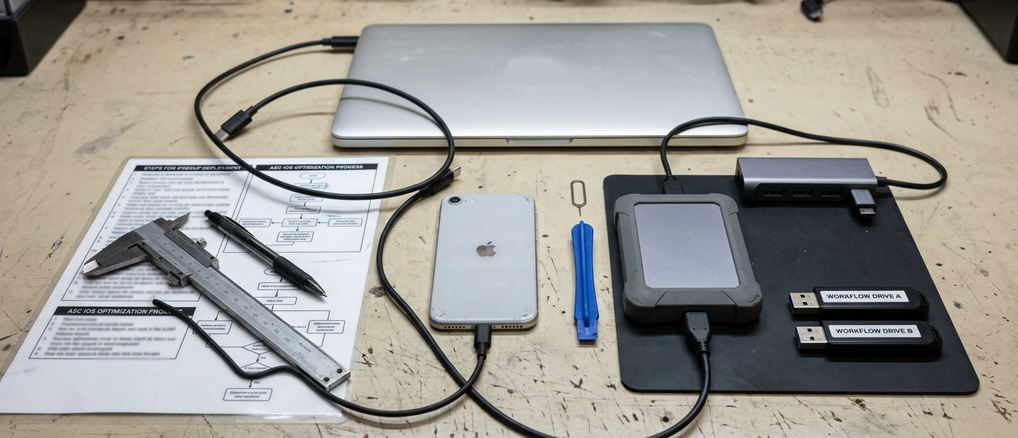
Keep the two environments separate in your head. On the iPhone or iPad, the work is a Settings review: storage categories, app offloading, attachment cleanup. On a Mac or Windows computer, the work is file transfer, photo export, and backup review.
A desktop utility earns its place when you want a structured view of removable iOS content, or when you want to move files off the device before deleting them. That's the use case—not a one-click speedup.
Real-World Scenarios: Which Fix Should You Try First?
Three common situations show how the order changes with the symptom.
An update won't install
An iPhone refuses an update because storage is tight. Update installation gets blocked when free space drops under about 5 GB on 128 GB models. Here, start with storage: transfer media, offload apps, then retry. Performance tuning does nothing for this case—performance steps show no capacity gain when storage alerts are already active.
A roomy iPad that still drags
An iPad has plenty of space but feels sluggish after long uptime. Based on mentor feedback, sluggish response tends to show up after 10 or more days of uptime. Restart first, review software, check app behavior, and look at background settings. Cleanup is not the answer when capacity isn't the constraint.
A legacy media device
An older iPod touch or legacy iPhone used mostly for media has a simpler path. Transfer files to a computer and keep the device workload light. Legacy iPod touch handling is limited to media transfer.
The Bottom Line for Device Performance Tuning
Storage cleanup is a capacity fix. Performance optimization is a behavior fix. Most healthy maintenance routines use both, but in the right order.
Address the capacity layer before the workload layer. Diagnose the symptom, remove unnecessary storage pressure, then tune workload and settings. Skipping the diagnosis is what sends people down the wrong path.
Bottom Line: For iPhone, iPad, iPod, Mac, and Windows users alike, avoid aggressive one-click promises. Prefer visible, reversible, well-understood steps—and keep them reversible.