
Why iOS Devices Slow Down Before They Fail
An iPhone that feels slow is not always a failing iPhone. More often it is a healthy device carrying years of accumulated weight: a tight storage volume, apps holding stale data, a pending update waiting on a restart, or a photo library that has grown without anyone pruning it.
The instinct is to start deleting. That is the wrong first move. Performance maintenance begins with observation, because the device already reports most of what you need to know before you touch a single setting. Read first, then act.
This article is a routine-upkeep checklist for iPhone, iPad, and iPod touch. It will not restore hardware that is already damaged, and it will not bypass the limits iOS places on third-party access. What it does is give you a repeatable sequence for keeping a working device responsive.
Criteria for Selection: What Made the Checklist
Each item below earned its place by meeting a single test: does it help a user diagnose a problem, reduce clutter safely, protect files, or avoid a common maintenance mistake? Steps that only sounded productive were left out.
The actions favor what most iPhone and iPad owners can reach without special tools. Where an older iPod touch or a legacy iOS version behaves differently, that difference is called out rather than glossed over. An iPod touch 7th generation, for instance, follows separate update eligibility than an iPhone 12 series device, and pretending otherwise helps no one.
One principle runs through the whole list: prefer reversible or low-risk steps. Review before you remove. Back up or transfer before you delete. Clean last, and clean selectively.
Diagnosis First: Read the Device Before You Tune It
1. Check available storage before deleting anything
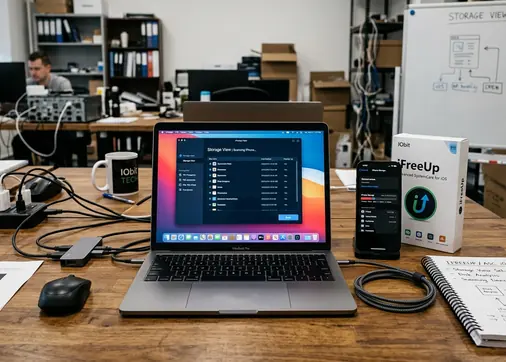
Open Settings > General > iPhone Storage and let the categories load. This view, consistent across iOS 15 through iOS 18, breaks usage down by Photos, Apps, Messages, and system data, and it surfaces recommendations near the top. Read it before you act on anything. Apple Support explains how to check storage on iPhone and iPad if you want the official walkthrough.
One scope note: these readings are most useful when the device starts with at least a few gigabytes free. A volume already pushed to its last fragments behaves erratically, and the numbers it reports become harder to trust.
2. Identify the type of slowdown
Not all lag shares a cause. Separate the symptoms before you pick a fix:
- Storage-related lag across the whole system, worse as free space shrinks.
- App-specific freezes that appear in one application but not others.
- Battery-related throttling, often paired with unexpected shutdowns on aging cells.
- Network delays that look like slowness but trace to Wi-Fi or cellular.
- Update-related sluggishness immediately following an iOS install.
3. Look for recent changes
Ask what changed just before the problem appeared. A large iOS update, a fresh app install, a bulk photo import, or a sync that failed partway through are the usual suspects. Timing is diagnostic. If the slowdown arrived with a specific event, that event is where you look first.
Storage and App Maintenance: Reduce Pressure Safely
4. Review large storage categories
Work down from the largest consumers. Photos and downloaded videos usually lead. Messages attachments accumulate quietly over years of group chats. Offline maps, browser data, podcast downloads, and per-app caches fill the middle of the list.
Inspect each category before deleting. The goal here is to understand where pressure lives, not to race for a number.
5. Offload or remove unused apps deliberately
iOS 12 and later distinguish two actions that look similar and are not. Deleting an app removes the binary and its local data. Offloading removes only the binary while preserving documents and data, so reinstalling restores your state. Before you remove anything, confirm whether that app's data is cloud-synced; if it is not, offloading is the safer path.
When clearing several apps in one session, restart after each batch of on the order of three to five. It keeps the storage view honest and lets the system reclaim space cleanly.
6. Clear browser and app clutter only when useful
Clearing Safari or in-app cache helps with specific complaints: a misbehaving page, a stuck login, a bloated download folder. It is not a routine chore. Reserve a Safari cache clear for devices actually showing significant browser data, and know the cost: clearing it may sign you out of sites and discard local convenience data you will have to rebuild.
Software, Battery, and Heat: The Hidden Performance Layer
8. Update iOS or iPadOS with legacy-device caution
Before any update, check four things: compatibility, available space, battery charge, and backup status. Run the update with the device in the ballpark of 40 to 80 percent charge, and confirm a recent backup exists.
Older hardware needs a different framing. An unsupported iPod touch or an aging iPhone will not gain new OS features, and chasing them is futile. For those devices, maintenance is the goal, not the next version number.
9. Review battery and charging behavior
On iPhone 6s and newer, Battery Health reports maximum capacity and peak performance status. Read it alongside the behavioral signs: how often Low Power Mode triggers, whether the device shuts down unexpectedly with charge remaining, which charging accessories you use, and how much heat the device sees.
Important: Do not judge a device's speed while it is hot, indexing after an update, restoring from a backup, or nearly out of power. Any one of these masks the device's true baseline. Give it a settled thermal window of roughly fifteen minutes after an update before drawing conclusions.
File Transfer and Cleanup Utilities: Where Tools Fit
10. Archive important files before permanent cleanup
Permanent deletion should always follow a transfer, never precede it. Move photos, videos, voice memos, documents, and any app exports to a Mac or Windows PC first. Once the originals are safely off-device, deletion stops being a gamble.
This is where a desktop tool earns its place. iFreeUp suits users who prefer to manage iOS files from a computer, giving a desktop-style review workflow for storage cleanup and transfer rather than tapping through small on-device menus. It fits the review-first habit this checklist depends on.
Advanced SystemCare for iOS can serve as a guided cleanup aid for people who want prompts rather than manual hunting. Treat it as an assistant, not an exception: it remains subject to the same iOS access limits and the same backup-before-delete discipline as anything else.
Scope and Limitations: What This Checklist Cannot Fix
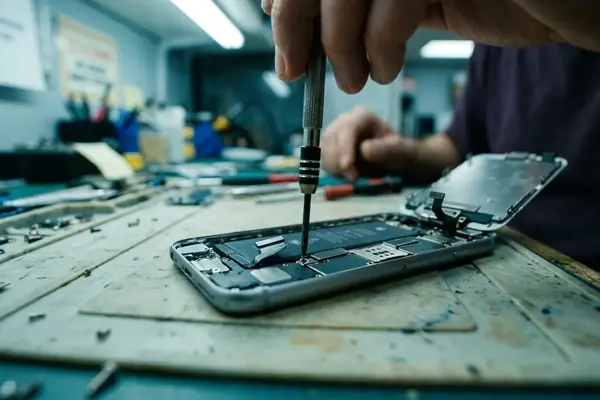
Maintenance has hard boundaries. It cannot repair failing storage, restore a worn battery, undo liquid damage, mend a broken connector, or satisfy operating-system requirements a device no longer meets. A liquid-damaged unit, for example, shows no storage-related gains from any step here, because the problem is physical, not organizational.
Some app data is intentionally walled off. iOS sandboxing protects certain files by design, and no ordinary utility can reach inside that boundary to clean it. That is a feature, not a failure of the tool.
When routine cleanup does not help, escalate deliberately: run Apple's built-in diagnostics, request a battery service evaluation, contact the app developer for app-specific failures, or take a full encrypted backup and perform a clean restore. A restore resolves a surprising share of problems that resist piecemeal fixes.
A Practical Maintenance Cadence for Real Devices
A workable routine is short. Run a quick storage review once a month. Clean before major updates, not after. Transfer files to a computer ahead of travel or a stretch of heavy video recording. Check battery and heat whenever performance noticeably shifts.
Maintenance pays off most when it happens early. A device with room to breathe responds to these steps; a device already at its limit, with files at risk, leaves you fewer safe moves.
Bottom Line: Diagnose first, preserve important files, clean selectively, and treat tools like iFreeUp as one stage in a controlled workflow rather than a one-click promise. The checklist works because the order works.