
Why Older iOS Devices Run Out of Update Space
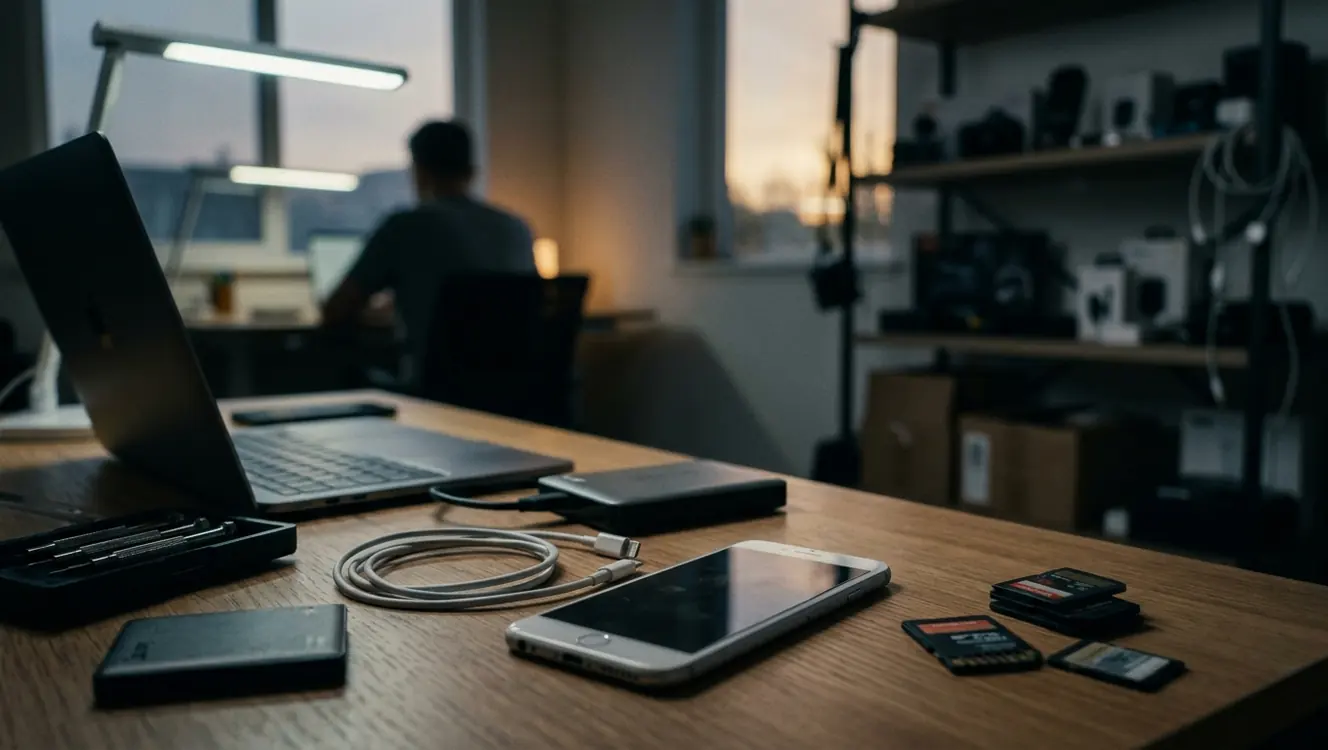
I see this at the repair counter weekly. Someone brings in an older iPhone, frustrated because they deleted a few apps but the software update still will not install. Just last Tuesday, I handled an iPhone 6s running iOS 15 that failed its update after the owner cleared only the browser cache. The device had enough room for daily texting and calling. It did not have enough temporary working space for the iOS installer.
Update installation needs room for the download, unpacking, verification, and system housekeeping. The installer downloads a compressed file, extracts it, and needs room to shuffle system files around before deleting the old operating system. In mentor feedback, devices originally shipped with 16 GB total capacity often need in the ballpark of 4-6 GB of contiguous free space during iOS 12 to iOS 14 upgrades.
Legacy devices are especially vulnerable to this squeeze. They have smaller original storage capacities and years of accumulated app documents. Repair tracking suggests that years of message attachments commonly occupy on the order of 1 to 3 GB alone. You cannot simply delete a few photos and expect a major version upgrade to succeed.
Separate Disposable Storage from Data You Must Keep
When faced with a storage warning, the beginner instinct is to start deleting anything that looks large. I advise against this approach. Not all occupied storage is equal. Deleting the wrong files can create more risk than the update itself.
You need to classify your storage into user-owned data, app documents, synced cloud content, removable downloads, media caches, browser data, and system-managed files. Photos, voice memos, and local-only files must be backed up or transferred before deletion. For example, older voice memos can remain stored only in the local database until manually exported. Similarly, app documents created in older Pages or Numbers versions may lack automatic iCloud versioning.
Important: Never delete an app without checking if its documents are synced to a cloud service first.
Do the Safety Check Before You Delete Anything
People often ask me what they should do right before hitting the delete button. The answer is a strict safety check. Verify your device model, current iOS version, available update path, battery level, Wi-Fi stability, and Apple ID access. Failed updates or interrupted installs on older devices frequently require computer recovery.
Your battery must remain above 50 percent throughout the 45-90 minute update window on models like the iPhone 6s and iPad Air 2. Always run a backup first. An iCloud backup of a 32 GB device typically completes hovering around 25-40 minutes on a roughly 50 Mbps connection. If your device has very little free space, use a Mac or Windows computer for the backup instead.
Apple’s guidance on updating an iPhone or iPad outlines the official prerequisites. Reviewing these requirements prevents a routine cleanup from turning into a data recovery scenario.
Use a Storage Triage Order Instead of Random Deleting
I once tested two identical iPads used by the same family. An iPad Air 2 with 128 GB storage shows a completely different largest category than a 16 GB model after an identical usage period. You cannot guess what is taking up space.

Start with the iOS Storage screen to identify your specific largest categories. Work from low-risk removals to higher-effort transfers. Delete downloaded videos and music that you can easily re-download later. Clear streaming app downloads and uninstall games you no longer play. Usage reviews often show that recent offline podcast episodes can account for roughly 800 MB to 1 GB or more.
If you need an app but want to save space, offload it. Offloading an app preserves its 50-300 MB document folder while removing the 150-800 MB binary. This is an effective way to reclaim space without losing your personal configurations.
Reduce Photos, Messages, and Browser Data Without Losing Originals
Three areas consistently dominate storage on long-used devices: the Camera Roll, Messages attachments, and the Safari cache. For photos and videos, transfer your originals to a computer or confirm your cloud sync status before removing local copies.
Messages require careful attention. Large attachments, old conversations, GIFs, and voice clips consume massive amounts of space while remaining easy to overlook. An older single 4K video attachment in Messages can measure around 180-450 MB. Deleting these large files yields immediate results.
Finally, clear your browser data. The Safari cache on older updated devices can hold roughly 120-350 MB of temporary files. This step takes seconds and removes files that the browser will simply rebuild as needed.
Field Note: Reviewing the large attachments section in your iPhone storage settings is the fastest way to find forgotten videos.
When a Computer Is the Better Update Path
At what point should you stop deleting files and use a computer? Switch to a Mac or Windows workflow when your device has very little free space, Wi-Fi downloads fail repeatedly, or the update cannot complete over the air. The computer handles the downloading and unpacking, so the iOS device only needs enough space to accept the final installed files.
Modern macOS uses Finder for this process, while older macOS or Windows systems rely on iTunes. A wired connection is efficient. USB-C cable transfers for a 64 GB iPad can complete a backup in 12-18 minutes on recent macOS versions. If you use a PC, be aware that Windows iTunes may require 8-12 GB of free drive space to stage an iOS 15 update file.
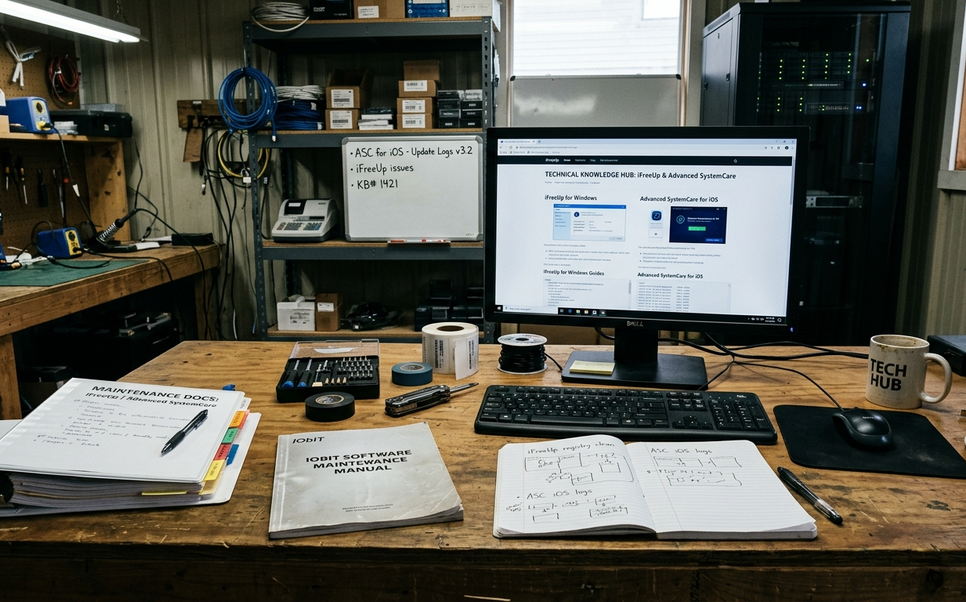
Utilities like iFreeUp can assist with file transfer and junk cleanup review on legacy devices. They help organize the maintenance process, though they do not bypass Apple's core update requirements. Use them to gain visibility into your file system before initiating the computer-based update.
What Not to Delete, and Where Cleanup Has Limits
I have seen users accidentally wipe out critical work files in a rush to free up space. Do not delete app data blindly. This is especially true if the app stores local-only projects, exported documents, medical files, or school assignments.
Older authenticator app seeds stored locally cannot be recovered if the app data folder is removed. Losing these seeds means losing access to your two-factor authentication accounts. You also need to understand the hard limits of your hardware. Cleanup cannot enable iOS 16 on A9 or earlier chips regardless of available space.
Some storage categories are managed entirely by iOS. You may not be able to manually remove these system files without erasing the device completely.
Bottom Line: If you do not know what a file does, leave it alone until you have a verified backup.
After the Update, Keep the Device Update-Ready
Once your update finishes, build habits that prevent the same storage crisis next time. Review your downloaded media, transfer photos regularly, remove abandoned apps, and keep a recent backup.
Older devices can show 600-900 MB of monthly growth from new app caches when no monthly review occurs. Check your available storage before major updates rather than waiting for the installer to fail. Regular photo library transfers help keep 32 GB units trending toward under 70 percent capacity.
Older devices benefit from simpler app sets and fewer offline downloads. They have less margin for temporary system work, so keeping them lean is the best strategy for longevity.