

Why iOS Storage Warnings Are Easy to Misread
I remember a repair-counter case from my multi-year stint at an authorized service desk where a customer deleted their entire photo library in a panic. Their iPad kept throwing a storage error. They assumed the device was out of room. The reality was their iCloud account had hit its 5GB limit, while the iPad itself had 64GB of free space.
This happens constantly.
An iPhone or iPad shows a storage warning, but the message rarely explains whether the issue is local device storage, iCloud storage, app cache, media, or update space. You need to know what the specific warning is measuring before you start deleting apps or photos.
This guide is a diagnostic list. It is not just a blind cleanup checklist. We will look at the exact text your device shows and trace it back to the root cause.
Criteria for Selection: Which Warnings Are Included
People often ask me which alerts actually matter for device performance. I focus on warnings commonly seen in Settings, the Camera app, the App Store, iOS updates, iCloud Backup, Files, and media downloads.
These alerts block photos and videos from saving, cause failed updates and failed downloads, and trigger backup failures and persistent storage recommendation prompts.
I exclude unrelated alerts here. Battery health notifications, cellular data limits, and app-specific subscription messages do not belong in a storage diagnostic workflow unless they directly block a storage-related action.
How iOS Decides That Storage Is a Problem
When you first set up an iPhone, the difference between local device storage and iCloud storage feels abstract. Local storage is the physical memory chip inside your phone. iCloud storage is the remote server space tied to your Apple ID.
iOS categorizes local storage into apps, photos, media, messages, iOS, and System Data. The way these categories behave varies heavily depending on whether the device uses iCloud Photos or local-only storage.
Available space fluctuates constantly. Indexing, app cache cleanup, failed downloads, and pending software updates all change the math behind the scenes. For example, iOS often needs temporary space roughly equivalent to the update size plus in the ballpark of 1-2 GB for indexing during software updates.
Field Note: Many automated tools suggest deleting System Data to free up space. This is usually a waste of time. System Data rebuilds within hours as the operating system recreates necessary cache files.
Common iOS Storage Warnings and What Each One Means
Let us break down the exact phrasing you see on your screen.
1. “iPhone Storage Full” or “iPad Storage Full”
This means your local device storage is critically low. You will notice immediate symptoms. App updates fail. The camera takes several seconds to save a single picture. Downloads become unstable or freeze entirely.
Do not delete anything yet. Go to Settings > General > iPhone Storage first. Look at the color-coded bar to see exactly which category is consuming the physical drive space.
2. “Storage Almost Full”
This is an early local-storage warning. It is distinct from a full failure state. Your device still functions, but it is approaching the limit.
Usage patterns suggest these warnings are often observed after several days of heavy media downloads without cleanup, though this varies based on network conditions. Review your large apps, downloaded media, message attachments, and offline files. You have time to make deliberate choices here.
The Safest Order for Responding to a Storage Warning
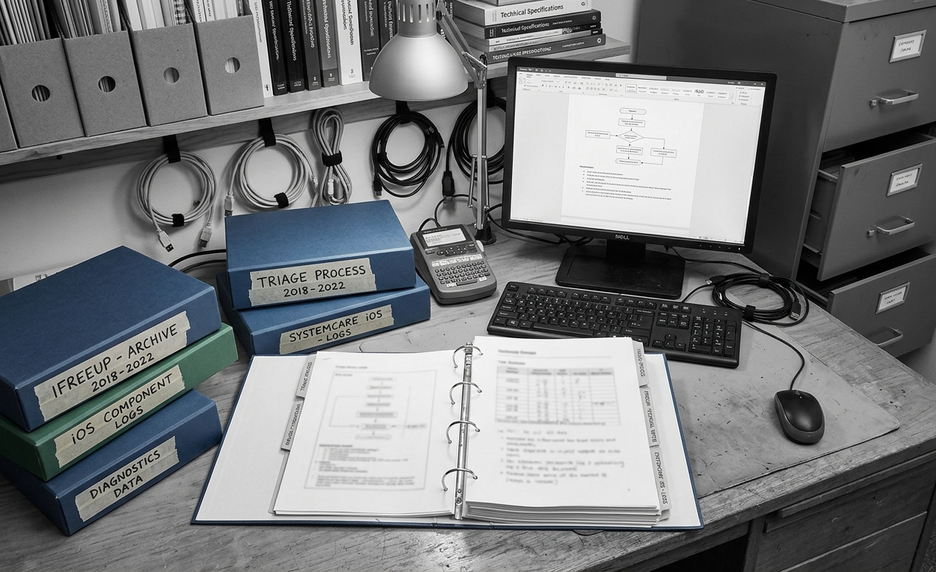
When a warning appears, follow a strict triage sequence. First, identify whether the warning is complaining about local space or iCloud space. Second, check the Settings app to verify the claim. Third, back up your important data. Finally, remove or export large files.
Start with lower-risk actions.
- Clear your recently deleted media folder.
- Remove offline downloads from streaming apps.
- Offload unused apps so you keep their documents but remove the application file.
- Review message attachments and export large videos to a Mac or Windows machine.
Desktop tools fit into this export phase. Using iFreeUp for file transfer and legacy device management can help you review large media safely. These tools can move files off the device, but they do not change iOS system behavior directly.
What These Warnings Do Not Prove
A storage warning does not automatically prove your device is damaged, infected, or permanently slow—it is simply a capacity alert.
Sometimes, persistent warnings remain even after a massive cleanup. This usually involves pending updates, iCloud sync delays, app bugs, or corrupted temporary data. The system just needs time to catch up and recalculate the available blocks.
Older iPhones and iPads naturally have less practical headroom for modern app caches and updates. A 32GB device will show warnings much faster than a 256GB device under the exact same workload.
Important: These behaviors apply primarily when the device is running iOS 15 or later with active iCloud sync enabled. Older firmware versions handle cache clearing differently.
A Practical Checklist Before the Next Warning Appears
You can get a smoother experience by adopting a simple maintenance routine. Review your storage monthly. Export large videos to a hard drive. Remove offline downloads you no longer need. Keep your iCloud backup size intentional by excluding massive apps that do not need cloud protection.
Apple’s iPhone and iPad storage guidance provides a good baseline for understanding these categories.
The warning text tells you where to look first. It does not tell you what to delete blindly.
Bottom Line: Match the warning to the correct storage pool, verify the numbers in Settings, and choose the least destructive fix to get your device running smoothly again.