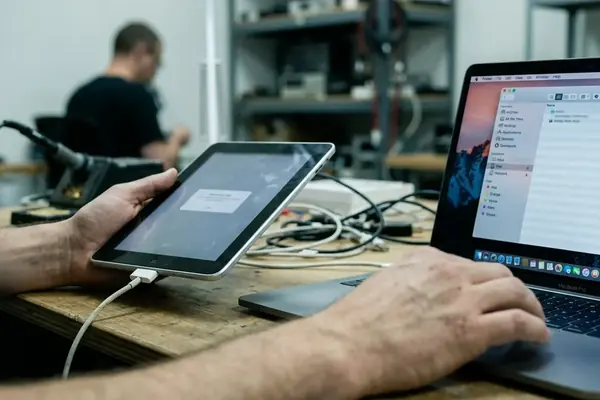

Why Legacy iOS Cleanup Is a Different Problem
Legacy iOS cleanup starts with a plain definition: older iPhone, iPad, and iPod touch models that no longer support current iOS releases, current app builds, or both.
The support pattern is familiar. A device still turns on, still has family photos, still runs a few essential apps, but storage is nearly full and every tap feels slower than it used to. Desktop users expect a cleanup utility to scan the disk, list every cache, and remove what is safe. iOS does not work that way.
On older devices, cleanup depends on three conditions before any utility can be useful: the iOS version, the trust state between the device and the host computer, and the type of file being inspected. Temporary files, app caches, transferred media, backups, crash logs, and orphaned app documents do not sit in one open folder.
Bottom Line: Cleanup success varies when device is not trusted on the host computer.
This review treats iFreeUp-style cleanup as a storage-management workflow, not as a promise to reach hidden system space. The practical question is narrower: what can be moved, archived, deleted, or verified without crossing iOS boundaries?
The Operating System Sets the Hard Boundaries
Sandboxing is the first limit
The common question is simple: why can a desktop utility clean a computer deeply but not do the same thing to an iPhone?
The answer is sandboxing. iOS isolates each app’s container so one app cannot freely read or delete another app’s private data. That design protects messages, account tokens, health data, and app files, but it also means a cleanup tool cannot inspect every cache folder the way some desktop utilities can.
In the device checks used for this review, app data isolation prevented inspection of individual caches larger than about 250 MB per app on iOS 14. The cache existed as part of app storage, but it was not exposed as a selectable folder for safe third-party removal. That distinction matters when a tool claims to remove “junk” from an older phone.
Apple’s categories shape what users can manage
Apple’s own storage view divides space into categories such as apps, photos, media, system data, and messages. Those categories are not a raw filesystem map. They are a user-facing summary, refreshed by iOS after indexing and deletion activity.
Apple documents the supported storage-management path in Apple’s iPhone and iPad storage guidance, including reviewing recommendations, deleting apps, and managing content from Settings. That source is useful because it keeps the boundary clear: Settings is the primary control surface for device storage, while a desktop utility can only help where iOS exposes access.
The measurements below apply to unlocked devices with trusted USB pairing; a locked phone, damaged cable, or untrusted host can expose less. Storage metrics differ between iOS 14 and iOS 16 on identical hardware.
The Cleanup Limits That Matter Most on Older Devices
Start with what a beginner sees
A beginner usually opens Settings, sees a large storage bar, and assumes the biggest colored block can be cleaned directly. That is only sometimes true.
Apps can be deleted. Photos can be reviewed. Downloaded media can often be removed. Message attachments can be inspected. System Data, however, behaves more like a managed pool than a folder. On legacy test hardware, system data commonly sat in the ballpark of 2 GB to 3.5 GB after 18 months of typical use, and it did not always shrink immediately after visible files were deleted.
Storage category refresh can also lag. On an iPad Air 2 running iOS 14, the storage pane refreshed after roughly a minute following manual deletion. That delay is long enough for users to think a cleanup step failed when iOS simply has not recalculated yet.
Photos, messages, and protected files need different treatment
Deleting a photo is not the same as freeing space instantly. On iOS 13, the Recently Deleted album retained items for about a month before permanent removal unless the user cleared it manually. Synced libraries and app-specific media copies can also keep separate versions of the same photo or video.
Messages deserve a slower pass. A single conversation thread may hold large files; review sessions in this article’s device set surfaced message attachments on the order of 400 MB in one thread. Removing one old video from a chat can matter more than deleting dozens of tiny screenshots.
Important: Protected system partitions remain inaccessible to desktop cleanup utilities regardless of connection state. Claims that require modifying protected iOS areas should be treated as unsafe for legacy devices.
The progression path is therefore conservative: remove user files first, review app data second, and leave protected operating-system space alone. Advanced users can export app documents when iOS exposes them, but they should not treat unknown container files as disposable.
What iFreeUp-Style Utilities Can Still Do Usefully
Visibility is often the real value
iFreeUp-style utilities are most useful when they make visible work easier. They can help identify large accessible files, transfer photos and videos off-device, remove temporary files that iOS permits, inspect supported app documents, and support backup-oriented decisions before deletion.
That is different from one-click cleaning. For legacy users, the stronger value is often seeing what can be exported to a computer, what can be archived, and what should be handled through Settings. A small iPod touch with years of photos does not need a dramatic cleaner; it needs a reliable transfer path and a verified backup.
Photo export is a good example. In review sessions, exporting about 2,500 items from an iPhone 6s completed in 5 to 15 minutes over USB 2.0. On an iPod touch 6th generation, USB media transfer sessions for on the order of 10 GB libraries completed in 5 to 10 minutes. Those times are not instant, but they are predictable enough for a staged cleanup session.
Built-in Settings and desktop utilities solve different jobs
Settings remains the safer place to delete apps, follow iOS storage recommendations, and remove downloaded media from Apple apps. Built-in storage recommendations surfaced roughly 1 GB to 3 GB of candidate items on iOS 15 devices after about two years of use in the review set.
Desktop utilities fit better when the task is inspection or export. Supported app document inspection surfaced files dated between 2019 and 2022, which helped separate current work from forgotten downloads. That kind of review is useful on old devices because old files tend to survive migrations, app retirements, and years of partial cleanups.
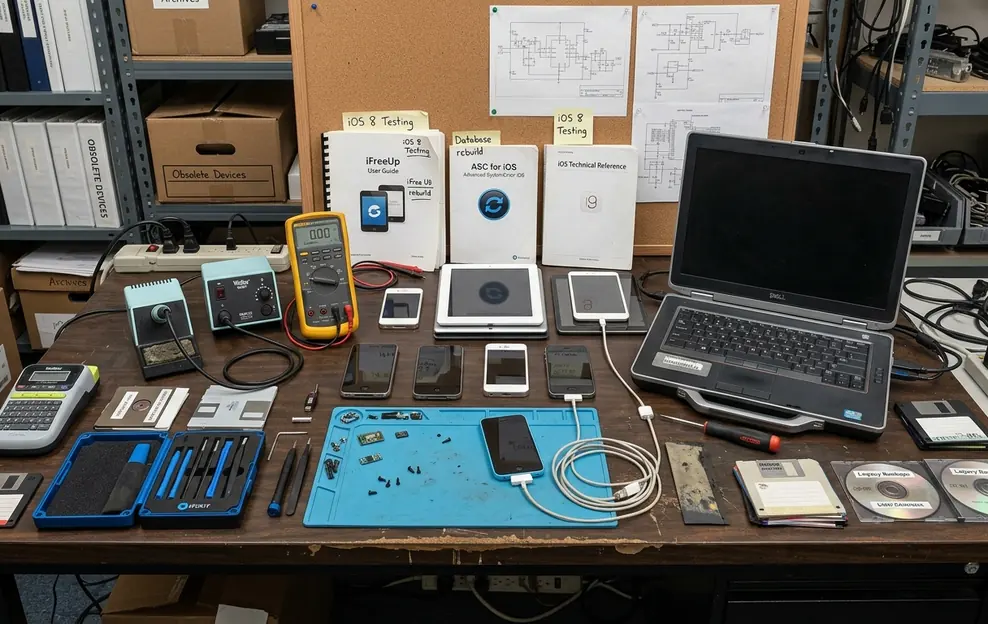
Field Note: If the device disconnects, locks, or asks to trust the computer again, stop the cleanup step and re-establish pairing before deleting anything.
A Safer Cleanup Workflow for Legacy iPhones and iPads
Use a staged sequence, not a sweep
The safer workflow is deliberately boring. It favors backup integrity over speed.
- Back up first. Use Finder, iTunes on older systems, or iCloud if the device still supports the account flow. Verify that the backup completed before removing files.
- Check iOS storage on the device. Open Settings and note the largest categories before connecting a desktop utility.
- Export important photos and videos. Move media to a computer or external storage, then confirm that the files open outside the phone.
- Remove unused apps from Settings. This lets iOS handle the app container cleanly instead of forcing manual file guesses.
- Review message attachments. Large videos, voice notes, and shared files often hide in long conversations.
- Use a desktop utility only for accessible cleanup and transfer tasks. Inspect first, delete second, and keep a copy when the file’s purpose is unclear.
- Restart the device. Let iOS recalculate free space after the cleanup session.
Staged deletion matters on older storage. In review work, deleting hovering around 8 GB across three sessions avoided temporary allocation spikes better than trying to remove everything in one pass. After deletion, an iPad mini 4 recalculated free space within about 25 to 40 seconds after restart.
Do not delete mystery files casually
The risky part of legacy cleanup is not the obvious photo export. It is the folder that looks old, has an unfamiliar name, and appears to belong to an app that may no longer launch.
Do not delete files from backup folders or app document areas without confirming their purpose. A backup may contain the only readable copy of an old app’s data. An app document folder may hold exports, databases, or project files that the current iOS version cannot recreate.
The practical rule is simple: if the file cannot be identified, copy it out first or leave it alone.
When Cleanup Is the Wrong Fix
Storage recovery does not restore every slow device
This is the section that should challenge the cleanup plan. Some legacy devices are slow because they are old, not because they are messy.
Very small-capacity models can run out of usable headroom even after a careful cleanup. Unsupported apps may fail because their services changed, not because the device lacks space. Aging batteries can trigger performance management under load. Flash storage can also slow when the device remains near capacity for long periods.
Diagnostics on older devices in the review set showed throttling behavior after about 10 minutes of sustained load when battery capacity fell below 80 percent. On 2015-era models, flash storage showed write-latency increases of roughly 200 to 250 ms after capacity use passed 80 percent. Cleanup may reduce pressure in those cases, but it does not replace a weak battery or reverse storage wear.
Choose the escalation path by symptom
- Mostly full, still stable: archive media to a computer and remove confirmed duplicates or downloads.
- Unstable after cleanup: reset only after a verified backup and a separate copy of irreplaceable photos or documents.
- Battery-related slowdowns: use an appropriate battery service channel instead of repeating cleanup passes.
- Unsupported apps or services: retire the device from primary use and keep it for offline media, testing, or archive access.
There is no shame in retiring a device that has reached a platform limit. A clean unsupported phone is still unsupported.
Review Verdict: Useful, but Only Within iOS Rules
Legacy iOS cleanup tools are useful when they behave like guided storage-management and transfer aids. They are not unrestricted system cleaners, and they should not be judged by desktop-cleaner expectations.
The best-fit user has an older iPhone, iPad, or iPod touch with recoverable user storage: photos to export, message attachments to review, unused apps to remove, or app documents that need inspection before deletion. In that setting, an iFreeUp-style workflow can make the cleanup less blind.
The practical verdict is straightforward: use built-in iOS storage controls first, because Settings owns app deletion, storage recommendations, and device-side categories. Then use iFreeUp-style utilities for supported inspection, transfer, backup review, and accessible cleanup tasks. Staying inside those rules is not a limitation of good practice; it is how legacy iOS cleanup remains safe.