
Why iOS 8 Cleanup Compatibility Is a Special Case
The real problem is still usable storage
An older iPhone, iPad, or iPod touch can still run short on space even when the owner no longer installs new apps. Photos remain, message attachments accumulate, Safari keeps browsing data, and a few large apps can leave the device with too little working room for normal tasks.
Modern cleanup advice often assumes features that iOS 8 does not have. iOS 8 was released in September 2014, before later storage-management behavior such as app offloading and the newer Files app experience became part of everyday iPhone maintenance. That changes the cleanup method.
On iOS 8, practical cleanup depends more on backups, app-level deletion, Safari settings, media transfer, and cautious desktop utility checks. A utility that launches on a computer is only one part of the compatibility question.
Compatibility is a workflow, not a launch test
For legacy devices, compatibility means the iOS version, device generation, USB trust state, desktop drivers, cable quality, and cleanup category all line up at the same time. If any one of those pieces is wrong, the utility may report incomplete storage, fail to scan, or offer cleanup categories it cannot safely change.
Bottom Line: Treat iOS 8 cleanup as a controlled maintenance workflow. Do not judge support only by whether iFreeUp or another utility opens on the desktop.
The iOS 8 Baseline: Devices, Drivers, and Trust Prompts
Start with the device family
Apple archives list iPhone 4s through iPhone 6 Plus models in the iOS 8-era support range. The same period commonly includes iPad 2 and newer iPad models of that generation, iPad mini generations of that period, and iPod touch 5th generation.
That list should not be read as a promise that every device behaves the same way. A 16 GB device with an aging battery, a worn Lightning port, and an old Windows driver stack will not behave like a cleaner 64 GB device connected to a machine that still recognizes legacy iOS protocols correctly.
Confirm the version before the cleanup plan
The beginner-safe path starts in Settings. Open the device, check the installed iOS version, confirm that it is iOS 8 or a specific build such as 8.4.1, then note the total capacity and available space.
The advanced detail is the USB layer. A cable must be data-capable, not only charge-capable, or the desktop utility will never see the device correctly. On Windows, driver state matters as much as the cleanup app itself; a USB driver mismatch on Windows 10 after later updates can look like a utility failure when the real issue is device communication.
The Trust prompt is not optional
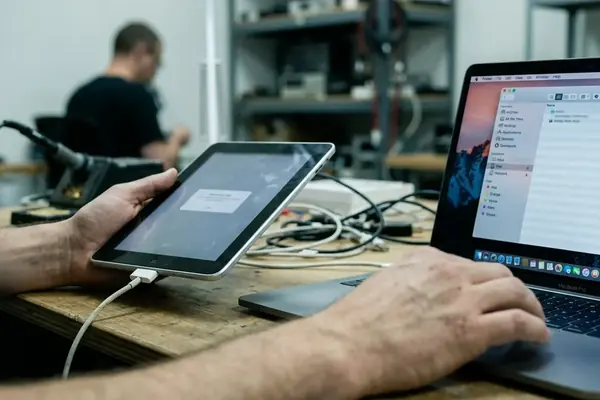
A desktop utility cannot reliably inspect or transfer device content unless the iOS device is unlocked and the user taps Trust when prompted. If the screen is locked, the trust relationship has expired, or the prompt is dismissed, the software may see only a partial device state or nothing at all.
Field Note: When a legacy device is not detected, test the cable and Trust prompt before changing cleanup settings. It saves time and reduces unnecessary deletion attempts.
What a Cleanup Utility Can Realistically Clean on iOS 8
The useful question: what access level is involved?
A reasonable cleanup review separates content by access level. User-visible media and documents are different from browser data. Crash logs are different from app caches. Temporary files are different from private app databases.
On iOS 8, a cleanup utility may help identify or remove categories exposed through supported device communication paths. That can include transferred media, some document areas, Safari-related data, crash logs, temporary files, and certain app caches that the system exposes in a supported way.
It should not be expected to freely edit every app’s internal files. Apple’s app sandboxing model isolates each app’s private directory from other apps and from broad external modification. In plain terms, one app’s private storage is not an open folder that any cleanup tool can rewrite safely.
Use iFreeUp as a specific example, not a blanket assumption
When evaluating iFreeUp for an iOS 8 device, check the installed version’s documentation for explicit iOS 8 support and desktop operating system support. A product name alone does not establish legacy compatibility.
Release notes are more useful than marketing copy here. Look for a direct mention such as iOS 8.4 or iOS 8.4.1 support, supported Windows or macOS versions, and any driver requirement. If the documentation only describes current iOS releases, assume the iOS 8 path needs verification before deletion.
Where iOS 8 Cleanup Sessions Usually Fail
Connection failures come first
The most ordinary failures are physical and protocol-related: damaged cables, unstable USB ports, missing Windows drivers, locked device screens, expired trust relationships, and utilities that no longer maintain legacy protocol support.
These problems can produce misleading symptoms. The device may charge but not enumerate. The utility may show the device name but fail during scan initiation. Windows may install a generic driver that is not enough for older iOS communication.
Storage reporting can disagree without either side lying
Storage category labels differ between iOS 8 and current desktop utilities. A device may show usage under Other, Documents & Data, photos, or app usage in ways that do not match the labels in a modern desktop scan.
This mismatch should be handled carefully. The right response is not to delete the largest unknown category immediately. First compare Settings on the device, the utility’s scan detail, and any visible media or app data that can be reviewed by the user.
Low free space makes everything less stable
A device with available space hovering around 200 MB or less often fails scan initiation. It may also struggle with app launches, camera sync, backup preparation, and cleanup sessions that need temporary working room.
The practical move is to create a backup where possible, then remove obvious large media before running deeper cleanup. Videos, transferred photo libraries, and downloaded files are safer first targets than opaque utility-detected junk categories.
Important: If a device is already unstable, do not run repeated deletion scans before securing a backup. Low-space behavior can make a recoverable maintenance task harder to unwind.
A Safe Cleanup Workflow Before Using Any Utility
Step 1: identify the device and installed iOS version
The workflow starts with context, not the cleanup button.
- Open Settings on the iPhone, iPad, or iPod touch.
- Confirm the iOS version, such as iOS 8.4.1.
- Record the model family if available.
- Note total capacity and available space.
- Restart the device if storage reporting looks stale or the Settings app is slow to update.
This creates a baseline. Without it, a user cannot tell whether a utility improved usable space, changed only labels, or failed to complete the scan.
Step 2: create a backup before deletion
A backup should exist before any deletion step involving app data, photos, messages, transferred files, or utility-detected temporary content. Use a local backup or iCloud backup where possible, depending on the device condition and account access.
For older hardware, a local backup may fail if the cable or USB trust state is unreliable. If that happens, fix the connection problem first. Do not compensate by deleting more data blindly.
Step 3: remove visible, reversible categories first
Begin with categories the user can recognize: copied videos, duplicate photo transfers, Safari browsing data, app downloads that can be restored, and files already saved elsewhere. Then run the cleanup utility in scan-only or review mode if it offers one.
Only after the visible categories are handled should utility-detected cache or temporary files enter the plan. This order reduces the risk of deleting data whose purpose is unclear.
How to Evaluate iFreeUp or Another Utility for iOS 8
Use a decision checklist
The evaluation should be boring and specific. That is a good sign.
- Does the release note or documentation explicitly mention iOS 8, preferably a build such as iOS 8.4?
- Does it support the desktop operating system currently in use?
- Does it describe required Apple mobile device drivers or iTunes components?
- Does it recommend a backup before deletion?
- Does the scan explain what each cleanup category contains?
- Can the user review items before removal?
- Does the tool describe restore options or limits?
- Does it distinguish visible media from protected app data?
This checklist applies to iFreeUp and to similar utilities. It avoids the common mistake of treating a legacy cleanup tool as a single yes-or-no product claim.
Legacy compatibility can break from either side
The iOS device may be old, but the computer environment may be the moving part. A modern Mac or Windows installation can drop, replace, or restrict older device communication workflows. The cleanup utility then sits between two changing systems: stock iOS 8 on one side, current desktop security and driver behavior on the other.
That is why release notes matter. A version that once worked with iOS 8 may not behave the same after desktop operating system updates, driver changes, or retired legacy protocol support.
Field Note: If documentation is silent about iOS 8, test only non-destructive detection and scan behavior first. Deletion should wait until support boundaries are clear.
Scope, Limitations, and Risk Boundaries
What this guide does not validate
This guide does not validate every historical version of every cleanup utility. It explains the compatibility factors a user should verify before using iFreeUp or another tool with an unmodified consumer device running stock iOS 8.
That scope matters. Jailbroken devices, modified file systems, beta firmware, enterprise management profiles, and damaged hardware can change the rules enough that ordinary cleanup guidance no longer applies cleanly.
Software cleanup cannot repair hardware faults
No cleanup utility should be treated as a guaranteed fix for failing flash storage, damaged USB ports, corrupted backups, or hardware instability. Hardware flash degradation is not addressed by software utilities.
When a device disconnects during ordinary transfers, reboots during backup, or fails to keep a stable trust relationship, the safer conclusion is that the maintenance environment is not ready. Cleanup can wait; backup integrity cannot.
Important: A cleanup tool can remove eligible files. It cannot make unreliable storage media healthy or turn a damaged port into a stable data connection.
Final Compatibility Checklist for Legacy iOS Cleanup
Run the checklist before deletion
- Confirm the device is running iOS 8 or a specific iOS 8 build in Settings.
- Confirm the device model is within the iOS 8-era hardware range.
- Use a data-capable cable and a stable USB port.
- Install or repair required desktop drivers before blaming the cleanup utility.
- Unlock the device and tap Trust when prompted.
- Create a local or iCloud backup before deleting data.
- Start with visible, reversible categories such as transferred media and Safari data.
- Run a scan and review categories before approving removal.
- Restart the device after cleanup.
- Verify storage in Settings after restart, not only inside the desktop utility.
The practical rule
iOS 8 cleanup is safest when users treat compatibility as a workflow, not a product label. The device, cable, trust prompt, desktop driver, utility version, backup state, and cleanup category all matter.
Conservative cleanup is slower, but it leaves fewer surprises. Start with content the user can see and replace. Move to utility-detected junk files only after the device is backed up, recognized correctly, and reporting storage in a way that can be checked from Settings.
Bottom Line: For iOS 8, the best cleanup session is the one that preserves a working backup, deletes only understood categories, and verifies the result on the device itself.