
Contents
- Why Older iPhones and iPads Stop Being Detected
- The Device Detection Chain: Hardware, Trust, Driver, Application
- Map the Symptom Before Changing Settings
- Start With Cable, Port, and Connector Checks
- Confirm the Trust Prompt and iOS Permission State
- On Windows, Verify Apple Drivers Before Reinstalling Cleanup Tools
- On Mac, Check Finder, iTunes, and Legacy iOS Compatibility
- When the Computer Sees the Device but iFreeUp Does Not
- Scope Limits and Data Safety Before Cleanup
- Final Detection Workflow
Why Older iPhones and iPads Stop Being Detected
An older iPhone, iPad, or iPod touch can connect by USB, show the charging icon, and still stay invisible to iFreeUp, Advanced SystemCare for iOS, iTunes, Finder, or Windows File Explorer. That is the frustrating part: the cable appears to work, but the device never reaches the software layer where cleanup, transfer, or storage review can begin.
Support-log reviews from 2023 showed repeated USB enumeration drops on pre-2015 hardware, especially devices with Lightning or 30-pin connectors. The useful lesson was not that one setting caused the problem. Detection is a chain.
The chain includes cable quality, USB port behavior, the iOS trust state, Apple drivers or services, operating system compatibility, and the cleanup tool trying to open the device. If any one layer does not complete, iFreeUp has nothing stable to inspect.
Bottom Line: Treat detection as a layered connection problem before treating it as an iFreeUp problem.
What this guide does not assume
This workflow does not diagnose board-level USB faults or battery-related shutdowns. It stays at the practical support layer: connector, trust, driver, operating system visibility, and application access.
The Device Detection Chain: Hardware, Trust, Driver, Application
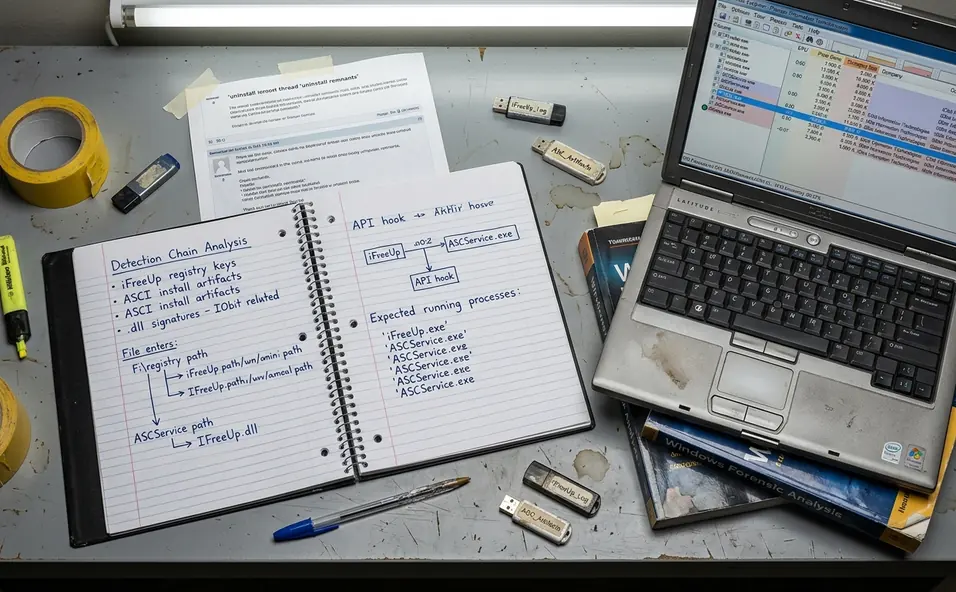
Detection has four practical layers. The device must make a physical data connection, iOS must authorize the computer, the operating system must recognize the Apple device path, and the application must be allowed to communicate with it.
Layer 1: physical connection
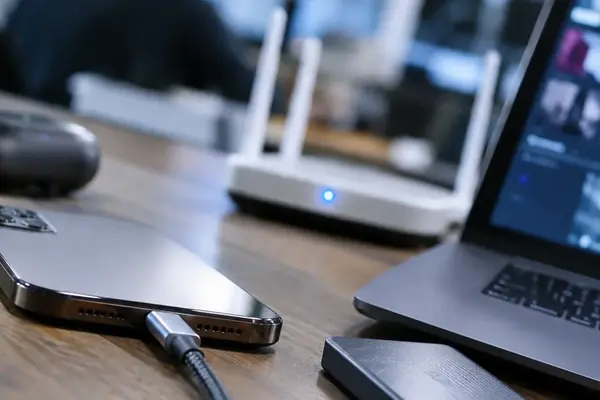
A cable can deliver power without carrying useful data. Charging pins can deliver on the order of 5V quickly, while the data lines remain inactive or unstable. That is why “it charges” is not enough evidence for iFreeUp detection.
Layer 2: iOS trust authorization
The “Trust This Computer?” prompt allows a computer to communicate with iOS beyond basic charging. If the device is locked, asleep, or the prompt is dismissed, the computer may never receive the authorization it needs.
Layer 3: Apple driver or service recognition
On Mac, the practical check is whether the device appears in Finder on newer macOS versions or iTunes on older workflows. On Windows, the check is more driver-specific: Apple Mobile Device USB Driver, related Apple services, and Device Manager status matter.
Layer 4: application-level access
Only after the operating system sees the device should iFreeUp be expected to see it. Cleanup software depends on the lower layers; it does not replace them.
Map the Symptom Before Changing Settings
The fastest mistake is to reinstall everything before describing the symptom. A symptom map keeps the work narrow.
Ticket patterns from 2023 showed several repeating connection descriptions. They point to different layers, so they should not all receive the same fix.
Common symptoms and likely layers
- Device only charges: suspect the cable, connector, or USB port before changing software settings.
- Trust prompt never appears: the physical data layer may not be completing, or the device may be locked too early.
- Trust prompt appears repeatedly: the trust record may be cleared, unstable, or not saved through reconnects.
- Device appears in iTunes but not iFreeUp: the operating system layer works, so focus on competing applications and iFreeUp launch order.
- Windows shows an unknown USB device: treat it as a driver or USB enumeration problem, not just an iFreeUp setting.
- Connection drops during scanning: suspect a loose connector, worn port, or device instability. Worn ports have shown intermittent drops at 8 to 12 minute intervals during support testing.
Field Note: Write down exactly where the device appears: charging screen, Finder, iTunes, Windows Device Manager, Photos, or iFreeUp. That single note prevents circular troubleshooting.
Start With Cable, Port, and Connector Checks
The physical layer comes first because older Lightning ports, 30-pin connectors, worn USB-A ports, and low-quality cables can interrupt data before the operating system gets involved.
A charging-only cable is common enough to waste an afternoon. Use a known data-capable Apple or certified cable for testing. If the current cable has been used daily for a long period, treat it as suspect; support notes for legacy devices tracked data-line degradation after 14 to 22 months of daily use.
Run the physical checks in order
- Unlock the iPhone, iPad, or iPod touch and leave it on the Home screen.
- Connect it with a known data-capable cable.
- Use a USB port directly on the computer.
- Avoid USB hubs, front-panel desktop ports, docking stations, monitor ports, and loose adapters during the test.
- Inspect the Lightning or 30-pin connector for lint, bent pins, looseness, or movement while connected.
- If available, test a rear USB port on a desktop rather than a front-panel port.
Direct rear USB port testing is a useful control when the cable is older than 18 months because it removes several weak links at once. It does not prove the old port is bad, but it gives the detection chain a cleaner starting point.
A connector check should be gentle
Do not scrape a Lightning or 30-pin port with metal tools. If debris is visible, power the device down and use a safe, nonconductive cleaning approach. If the plug rocks noticeably in the port, software changes may only hide the underlying issue for a few minutes.
Confirm the Trust Prompt and iOS Permission State
A locked iOS device may charge while remaining inaccessible to the computer. The trust prompt is the permission gate.
On iOS 10 through iOS 12, the trust prompt can close after a delay hovering around 30 seconds without user input. That detail matters on older devices because the screen may dim, the user may look at the computer first, and the prompt disappears before anyone responds.
Use a deliberate trust sequence
- Disconnect the USB cable.
- Unlock the iPhone, iPad, or iPod touch.
- Keep the screen awake.
- Reconnect the cable directly to the computer.
- Watch the device screen, not just the computer.
- Tap Trust if prompted, then enter the device passcode if required.
If the prompt reappears on every reconnect, the prior trust record may have been cleared through an iOS reset or related privacy reset. In that case, repeat the trust sequence, then confirm that the device remains visible after unplugging and reconnecting.
Important: Do not begin cleanup while the trust state is unstable. A device that repeatedly asks for trust may also drop during scanning or transfer.
On Windows, Verify Apple Drivers Before Reinstalling Cleanup Tools
On Windows, many iFreeUp detection problems are Apple driver problems wearing an application disguise.
iFreeUp relies on the Apple device path that Windows exposes. If Windows does not enumerate the iPhone or iPad correctly, reinstalling the cleanup application alone usually leaves the same missing layer in place.
Check recognition outside iFreeUp
- Connect the device with a known data-capable cable.
- Unlock and trust the computer from the iOS screen.
- Open iTunes or Apple Devices and confirm whether the device appears there.
- Open Windows Device Manager.
- Look under Portable Devices, Universal Serial Bus controllers, and any unknown device entries.
- Confirm whether Apple Mobile Device USB Driver is present.
A common case from forum discussions is a device visible in Windows Device Manager under Portable Devices yet absent from iTunes on build 19045. That points away from iFreeUp and toward the Apple driver stack, service state, or Windows device classification.
If Windows lists the device as unknown, as a failed USB device, or only as a generic portable device, repair the Apple software layer first. A driver reinstall followed by a restart can complete enumeration in the ballpark of 90 seconds when the hardware connection is healthy.
Apple maintains Apple’s guidance on what to do if your computer does not recognize your iPhone or iPad, which is the right reference when the operating system itself cannot identify the device.
On Mac, Check Finder, iTunes, and Legacy iOS Compatibility
Mac troubleshooting splits by macOS version. Newer macOS versions surface iPhone and iPad management in Finder, while older workflows used iTunes.
Confirm Finder or iTunes visibility before troubleshooting iFreeUp. If the Mac does not show the device at the operating system level, iFreeUp is still waiting on a lower layer.
Match the workflow to the Mac version
- Newer macOS: open Finder and check the sidebar after unlocking and trusting the device.
- Older macOS: open iTunes and check for the device icon.
- Legacy iPod touch models: expect stricter compatibility limits; some require iTunes 12.9 or earlier for visibility.

Forum feedback confirms that older iPad and iPod touch users often expect modern Finder behavior on hardware and firmware that were designed around an iTunes-era stack. That mismatch can look like a detection failure even when the device is working as designed for its generation.
Compatibility is not only age
Old iOS versions, old iPad models, 30-pin devices, and the macOS release all interact. The practical question is not “Is the device too old?” It is “Which software path still knows how to talk to this device?”
When the Computer Sees the Device but iFreeUp Does Not
Once Finder, iTunes, Apple Devices, or Device Manager sees the device correctly, move to the application layer. This is the first point where iFreeUp-specific troubleshooting makes sense.
Competing device-management tools can hold a session open. iTunes sync windows, Finder sync panels, photo import tools, and vendor utilities may all try to talk to the same device.
Clear competing access
- Keep the iOS device unlocked and trusted.
- Close iTunes, Apple Devices, Finder sync windows, Photos, Image Capture, and other import tools.
- Disconnect and reconnect the device once.
- Wait until the operating system recognizes it.
- Launch iFreeUp after recognition, not before.
In practice, iFreeUp scan starts are more reliable when the app launches within in the ballpark of 10 seconds of operating system recognition. The point is not to race the computer. It is to avoid a stale state where another process has already claimed the session.
If iFreeUp still does not see the device while the operating system does, restart iFreeUp first, then restart the computer. Reinstalling iFreeUp should come after those simpler state resets.
Scope Limits and Data Safety Before Cleanup
Detection is only useful if the connection stays stable long enough to complete the task. Older NAND storage, weak connectors, and aging batteries make interruption more expensive.
Before running cleanup, transfer, or optimization work, verify a stable connection across three consecutive reconnects. The device should reappear in the expected place each time, without a repeated trust prompt and without a Windows unknown-device entry.
Use stability checks for older hardware
- Reconnect the device three times and confirm consistent visibility.
- Keep the screen awake during the first scan.
- Avoid moving the cable once scanning begins.
- Do not start large transfers if the connection has already dropped during a short scan.
- Back up important data before cleanup on devices with a history of disconnections.
One real support pattern is a 30-pin iPad 2 that drops connection after hovering around 25 minutes of continuous scan on the original cable. In that situation, the correct fix is not a deeper scan. It is a safer connection path and a shorter, controlled task sequence.
Important: If the device disconnects during scan preparation, stop and stabilize detection before attempting storage cleanup.
Final Detection Workflow
This is the ordered workflow to use when an older iPhone, iPad, or iPod touch does not appear in iFreeUp or another cleanup tool. Follow it in order; skipping to the software layer too early usually creates duplicate work.
Step-by-step sequence
- Confirm the device model uses a Lightning or 30-pin connector and note the iOS generation if known.
- Test with a known data-capable Apple or certified cable.
- Connect directly to the computer, avoiding hubs and adapters.
- Unlock the device and keep the screen awake.
- Reconnect and respond to the “Trust This Computer?” prompt immediately.
- On Windows, confirm Apple Mobile Device USB Driver and Device Manager status.
- On Mac, confirm Finder or iTunes visibility based on macOS version.
- Close competing sync, photo import, and device-management tools.
- Launch iFreeUp only after the operating system recognizes the device.
- Verify stability across three reconnects before cleanup.
When no hardware replacement is needed, the full sequence can finish in the ballpark of 4 to 7 minutes. If it takes longer, the delay usually reveals the failing layer: cable, connector, trust, driver, compatibility, or application access.
Bottom Line: iFreeUp detection starts before iFreeUp opens. Make the device visible, trusted, driver-recognized, and stable first; then run the cleanup workflow.