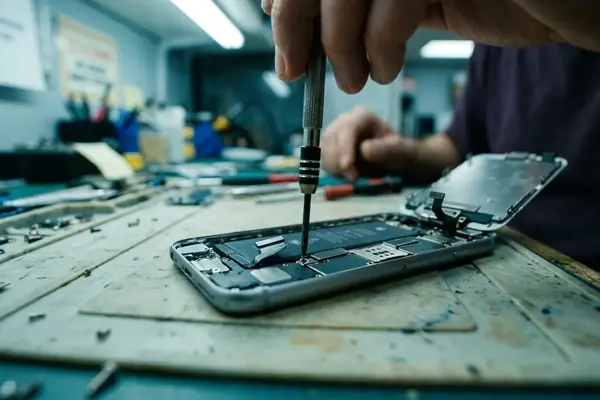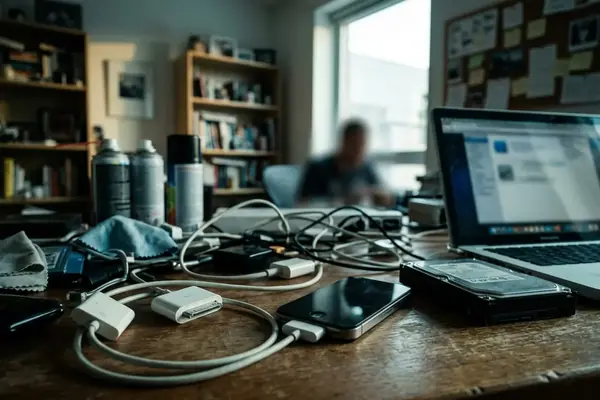


Storage pressure rarely announces itself politely. On an actively used iPhone, iPad, or iPod touch, free space erodes quietly over months until a photo refuses to save or an update will not install. This guide explains how to review iOS junk files with iFreeUp before deleting anything, so that recovered storage does not come at the cost of data the user actually wanted.
Contents
- Why iOS Junk Files Should Be Reviewed Before Cleanup
- What iFreeUp Can Review—and What It Should Not Replace
- Safety Checklist Before You Connect the Device
- Set Up iFreeUp for a Clean First Scan
- How to Read iFreeUp Junk-File Categories
- A Step-by-Step Cleanup Workflow That Minimizes Risk
- Verify the Result Before Running Another Cleanup
Why iOS Junk Files Should Be Reviewed Before Cleanup
App caches, temporary files, crash logs, update remnants, and the residue left behind by transferred media all accumulate as a device is used. None of this is unusual. It is the ordinary byproduct of running apps day after day.
The pattern becomes visible on devices in regular service. On systems running iOS 15 through 17, temporary files commonly build to somewhere between about 1 and 4 GB after roughly a year or more of active use. That range is wide because so much depends on which apps are installed and how often they run.
iOS does not surface every temporary file to the user. The Settings interface summarizes storage, but it does not expose the individual cache and log artifacts that a desktop-assisted tool can inspect. This is precisely why a connected workflow with iFreeUp exists: it reaches the categories that the on-device storage screen only hints at.
The premise of this guide is restraint. The goal is not to delete everything a scan detects. It is to understand what each category represents, and then to act on the items that are genuinely safe to remove.
What iFreeUp Can Review—and What It Should Not Replace
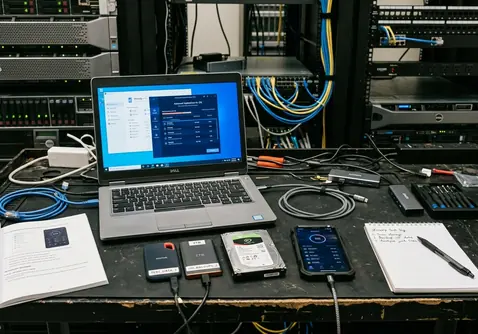
iFreeUp reviews junk-file categories, identifies temporary or removable items, and helps recover storage through a desktop connection. That is the useful and accurate description of its job.
Its access is bounded. Device trust protocols introduced around 2021 block full filesystem access for any desktop cleanup utility, so the scope here is deliberately limited to junk categories. iFreeUp lists up to seven removable categories, but it cannot reach encrypted keychain items or the protected Health app databases. Those areas stay sealed by design.
It also helps to be clear about what the tool is not. iFreeUp is not a forensic recovery platform. It is not a full replacement for iTunes or Finder, and it does not promise a performance improvement. Recovering storage and speeding up a device are different outcomes, and conflating them sets the wrong expectation.
Field Note: When a category looks large but unfamiliar, treat the size as a question rather than an instruction. A big number is a reason to inspect, not a reason to delete.
Safety Checklist Before You Connect the Device
A few minutes of preparation prevents most cleanup regrets. Before connecting anything, confirm four things: the device identity is correct, the battery has adequate charge, the USB cable is stable, and the desktop permission prompts can be answered.
Battery level matters more than it seems. Keep the device at around 40 percent or higher before starting the USB connection, which avoids a mid-scan power loss that could interrupt the process at an awkward moment.
Confirm a recent backup before deleting anything. This step sits ahead of the scan for a specific reason: legacy photo libraries on older devices can exceed on the order of 40 GB, and that material is irreplaceable if it is removed without a prior copy to iCloud or a computer. Messages, app documents, and older app data deserve the same caution.
Use Apple's own storage interface as a baseline. Open the device storage screen and note what iOS reports, then compare that against what iFreeUp detects later. For the official walkthrough, see Apple's iPhone storage guidance. Having both numbers in view makes the scan results easier to interpret.
Set Up iFreeUp for a Clean First Scan
The setup sequence is short and worth following in order.
- Install or open iFreeUp on the desktop.
- Connect the iPhone or iPad by USB cable.
- Unlock the device so the screen is active.
- Approve the trust prompt if the device asks whether to trust the computer.
The desktop must recognize the iOS device before iFreeUp can inspect any storage category. If the device does not appear, no amount of clicking inside the application will help; the connection has to be established first.
Close competing sync or transfer tasks before scanning. A backup running in Finder, a photo import, or another device-management tool can interrupt the scan or skew what the categories report. A scan on a USB 2.0 cable typically completes quickly, so there is little reason to multitask through it.
How to Read iFreeUp Junk-File Categories
The categories a reader should expect fall into recognizable groups: temporary files, cache files, crash logs, downloaded remnants, app-generated residue, and other removable storage artifacts. Each name describes the origin of the data rather than its importance.
Read those names by risk level, not by size. A large cache category is often safer to clear than a small one tied to app documents, because size and risk are independent. The instinct to delete whatever is biggest is the instinct to resist.
Some categories are generally lower risk:
- Temporary cache that apps rebuild automatically.
- Obsolete crash logs that no longer correspond to current app versions.
- Non-personal system residue left from updates or transfers.
Even these lower-risk groups deserve a glance before removal. A category can be relabeled or reported differently across versions; for instance, category sizes have been observed to display differently after certain iOS 16 updates on devices with prior jailbreak history. Reading first, then acting, accounts for that kind of variance.
A Step-by-Step Cleanup Workflow That Minimizes Risk
A conservative pass beats an aggressive one on the first run. The workflow below keeps personal data out of harm's way while still recovering meaningful space.
- Run the scan and let it finish completely.
- Expand or inspect each category to see what it contains.
- Select only the items you understand and can confidently remove.
- Skip any category that sits adjacent to personal data on this first pass.
- Run the cleanup.
Start narrow. Selecting every detected item in a single sweep is the fastest route to deleting something you wanted to keep. A first pass that targets temporary cache and obsolete logs recovers storage with very little exposure, and the device can always be scanned again.
Keep the device connected until the utility reports completion. Do not open multiple device-management tools at the same time, since competing access can stall the process. On iPhone 8 models specifically, scans have been known to stall when crash logs are unusually numerous, so clearing logs in stages on those devices is sensible.
Important: Disconnecting the cable mid-cleanup, or letting the device lock and lose its connection, can leave the operation incomplete. Wait for the explicit completion message before unplugging.
Verify the Result Before Running Another Cleanup
Cleanup is not finished when the progress bar fills. Verification is the part that confirms nothing important left with the junk.
Check the iOS storage screen and compare it against the baseline noted earlier. Reopen the apps that matter most, confirm that photos and documents are still present, and watch for any app that needs a moment to rebuild its cache on first launch.
A small amount of cache returning after normal use is expected. It is the sign of apps doing their job, not evidence of a failed cleanup. There is no need to immediately scan and delete again the moment a cache reappears.
When a scan stalls or the device drops off, the fixes are straightforward and worth trying in order:
- Reconnect the cable and make sure it is seated firmly.
- Unlock the device so the screen is active.
- Restart iFreeUp.
- Restart the iOS device.
- Try a different USB port.
Most interruptions trace back to a loose cable, a locked screen, or a competing process rather than a fault in the cleanup itself.
Bottom Line: Review before you delete, keep the first pass conservative, and verify the result against a known backup. Outcomes vary by iOS version, app behavior, device model, and prior sync history, so treat each device on its own terms rather than expecting identical numbers across hardware.