

Why Desktop iOS File Management Still Matters
An iPhone fills up faster than most users expect. Camera roll media, app documents, cached files, downloads, voice memos, and large video clips accumulate quietly, and the device's small screen makes reviewing all of it a slow exercise.
A desktop changes that. Reviewing hundreds of photos, sorting app exports, or pruning offline videos is simply easier on a larger display with folder access and a keyboard.
iCloud helps, but it does not solve the same problem. Synchronization keeps data consistent across devices; it does not replace local review, selective transfer, offline backup, or direct cleanup. A user who only relies on iCloud often still carries the same storage pressure on the device itself.
This article treats the question as a workflow comparison, not a brand contest. Mac and Windows can both manage iOS files. What differs is the set of tools each exposes and the friction points each introduces.
The Platform Split: Finder on Mac, iTunes on Windows
The core technical difference sits at the device-management layer. Modern macOS handles iPhone and iPad sync and local backup through Finder. Windows workflows typically depend on iTunes, the newer Apple Devices application, File Explorer photo import, or third-party utilities, depending on the task.
On macOS Catalina and later, Finder absorbed the device responsibilities iTunes once held. On macOS 12 and 13, all device file sharing routes exclusively through the Finder sidebar entry for the connected device. Older macOS versions still rely on iTunes, which is worth confirming before assuming the Finder path applies.
Windows presents a layered experience. The chain runs through USB driver recognition, a trust prompt on the iOS device, the relevant Apple software components, and File Explorer access for the DCIM folder containing photos and videos.
One detail trips up many users: File Explorer's DCIM access is limited to camera roll items only. App documents and other categories do not appear there.
Mac Workflow: Integrated, Predictable, but Controlled
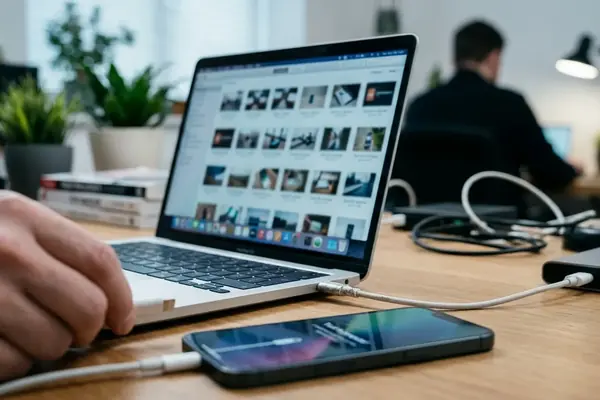
The Mac sequence is short. Connect the iPhone or iPad by cable, approve the Trust prompt, open Finder, select the device in the sidebar, then manage backups, sync options, and app file sharing where the app supports it.
Timing is fairly consistent. On macOS releases after 2020, the Trust prompt usually appears in the ballpark of three to eight seconds after the cable is inserted. Apple documents the full sync sequence in Apple's guide to syncing iPhone and iPad with Finder.
Why does this feel smoother to many users? On newer macOS versions there is no separate iTunes dependency, Photos import behaves consistently, and continuity with Apple ID, iCloud Photos, AirDrop, and Finder reduces the number of moving parts.
The integration has limits. Finder does not expose the entire iOS file system. App sandboxes remain restricted, and cached or temporary app data is not always visible for manual deletion. A user expecting a full file browser will find a curated, controlled view instead.
Field Note: If the device never appears in the Finder sidebar, check whether the screen is locked. A locked iPhone often fails to register, and unlocking it usually clears the issue without reconnecting the cable.
Windows Workflow: Flexible, More Manual, Driver-Dependent
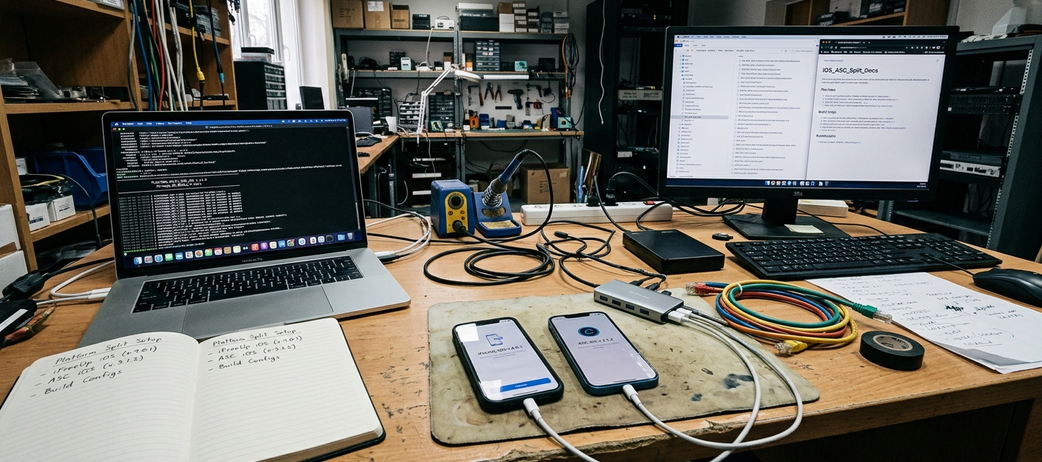
The Windows path involves more checkpoints. Install or update the Apple software if needed, connect the iOS device, approve Trust This Computer, confirm driver recognition, then choose between iTunes, Apple Devices, File Explorer, the Photos app, or a third-party transfer utility based on the task at hand.
Driver recognition is the gate. On Windows 10 22H2 builds, it generally completes on the order of twelve to twenty-five seconds. Once recognized, File Explorer exposes the DCIM folder for camera roll export.
Windows earns its place through breadth. Hardware is widely available, shared workstations are easy to use, folder-based media export feels familiar to most people, and the platform is compatible with a wide range of iOS transfer and cleanup utilities, including iFreeUp-style tools.
The friction is real, though. Device recognition can fail because of driver issues, cable quality, a locked screen, outdated iTunes components, or conflicting USB ports. Driver conflicts have surfaced with USB 3.0 hubs on some 2023-era models, which is a useful first thing to rule out when a device refuses to appear.
Storage Cleanup: What Each Desktop Can Actually Touch
It is more honest to compare cleanup depth than to promise performance gains. Both Mac and Windows can move photos, videos, downloads, and documents off the device. Neither desktop platform can freely edit protected iOS system files, and no amount of cabling changes that boundary.
Users typically encounter a recurring set of storage categories:
- Camera roll media (photos and videos)
- App documents shared through file sharing
- Offline videos and downloaded media
- Message attachments
- Browser cache and app cache
- Update leftovers
Native Apple tools are strongest for backup, sync, media import, and preparing a device for restore. Specialized utilities take a different angle: they are built to scan for removable junk and export files through a more task-focused interface. The two roles overlap less than they appear.
A practical takeaway: do not expect either desktop to surgically delete an app's internal cache. The reliable lever is moving large media and documents off the device, then letting the device manage its own protected storage.
Legacy iOS Devices Change the Decision
Older iPhones, iPads, and iPods often push the choice in a different direction. Legacy iOS versions may depend on older iTunes-era behavior, older cables, or software that no longer slots cleanly into the latest macOS release.
The version matching can be specific. iOS 12 devices, for example, may require iTunes 12.9.5 or Apple Devices 1.0 on Windows for media export. That kind of pairing matters more on legacy hardware than on current devices.
Mac compatibility has practical edges. A modern Mac is excellent for current iPhones but less convenient when the goal is recovering media or app files from an older iPod touch or an early iPad. macOS Ventura, for instance, can drop native sync support for the iPod touch 6th generation, which forces a different approach for that device.
A Safe Cross-Platform File Management Checklist
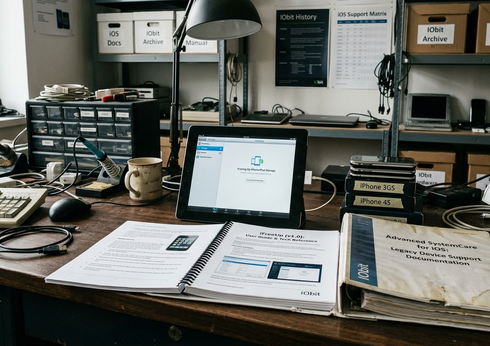
Windows tends to offer more flexibility with legacy utilities, but that flexibility comes with setup work. Driver installation and software version matching can take more manual effort, and skipping a step often means the device simply does not appear.
Important: The version-matching guidance above applies most cleanly when the device runs iOS 15 or higher. Much older releases may need their own period-correct software, so confirm the exact iOS version before selecting a tool.
Which Workflow Fits Your Use Case?
The decision usually resolves once the actual task is named.
Mac suits users who want integrated backups, predictable Photos import, AirDrop-adjacent workflows, and fewer setup steps on current Apple devices. If the hardware is recent and the goal is routine maintenance, the shorter Finder path is hard to beat.
Windows suits users who want folder-style exports, a wider choice of utilities, access from non-Apple desktops, or legacy iFreeUp-style cleanup workflows. The trade is more setup in exchange for more flexibility.
A few common cases make this concrete:
- Photographers moving large camera roll libraries often prefer the Mac's consistent Photos import, though Windows folder export works well for bulk copies.
- Families backing up a shared iPad usually benefit from the simpler Mac backup flow.
- Technicians handling many devices, including older ones, tend to lean on Windows for its utility breadth and legacy support.
- Users reclaiming space from older iPhones may find Windows more accommodating when period-correct software is required.

This sequence applies to both platforms and reduces the most common failures:
- Update the Apple software on the desktop.
- Inspect the cable for damage or loose seating.
- Unlock the iOS device before connecting.
- Approve the Trust prompt when it appears.
- Make a backup before any cleanup.
- Export irreplaceable media to a known location.
- Begin cleanup only after the export is confirmed.
Document where files were exported. This matters most when moving photos, app folders, or voice recordings to an external drive, because a misplaced export is easy to forget and hard to reconstruct later.
Avoid running multiple transfer utilities at the same time. Device locks, sync conflicts, and interrupted scans all become harder to diagnose when two tools are competing for the same connection.
Bottom Line: Mac and Windows both manage iOS files capably. The right choice depends on device age, the task, and how much setup the user is willing to absorb. Back up first, export irreplaceable media before cleaning, and let the device handle its own protected storage.