
Why an Aging iPad Begins to Stutter
Poorly chosen cleanup steps can erase settings, break site sign-ins, and consume an afternoon without touching the original lag. A controlled tune-up works differently: change one condition, repeat the same test, and keep only the changes that improve scrolling, typing, or app switching.
Three Sources of Intermittent Delay
Most intermittent sluggishness on an older iPad can be traced to three software pressures. Limited working memory forces the system to reload app content. Crowded storage leaves less operating room for downloads, updates, caches, and temporary files. Background activity competes with the app currently on screen.
These pressures often appear as brief hitches rather than complete failures. A Settings list may catch during a fast scroll, the previous app may reload after a switch, or typed characters may appear in a burst.
Where a Settings Tune-Up Stops
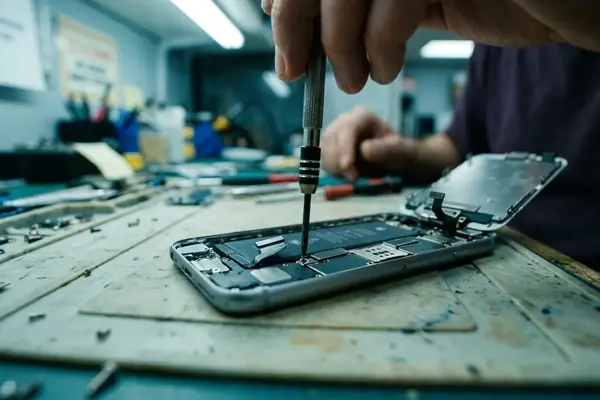
Perceived delay and hardware trouble need separate treatment. Interface animation can make an otherwise normal app opening feel slow. Persistent heat, rapid battery loss, spontaneous shutdowns, repeated crashes, or unresponsive touch point beyond Safari data, widgets, and visual effects.
Chassis Warning
Treat lag that remains in a freshly opened built-in app after a full restart, especially when accompanied by heat or touch faults, as a reason to stop changing settings and assess the device itself.
Quick Win 1: Restart and Record a Clean Baseline
Choose Three Repeatable Actions
Start by assigning one visible action to each complaint. Scroll a long page in Settings, switch between two familiar apps, and type one sentence in Notes. Use the same apps, page, and sentence throughout the tune-up. Casual impressions are difficult to compare; repeated actions expose whether a change helped.
- Close any active work and perform a normal full restart.
- From confirming slide-to-power-off to reaching the lock screen, allow on the order of 40–120 seconds on a storage-stressed older iPad.
- Wait in the ballpark of 4–8 minutes after the Home Screen returns so startup activity can settle.
- Run the Settings scroll, two-app switch, and Notes typing test.
- Write down which symptoms improved, stayed unchanged, or became worse.
A restart clears temporary processes and session state without changing personal settings. It can resolve a transient slowdown. Persistent storage pressure, software defects, and hardware faults will remain.
Leave Healthy Apps Alone
Routine mass force-closing adds relaunch work the next time each app opens. Reserve that action for an app that has frozen or is behaving incorrectly. The normal restart already provides the consistent starting point needed here.
Quick Wins 2–3: Reclaim Storage and Trim Safari
Win 2: Remove Inspectable Large Items
Open iPad Storage and work from visible categories instead of deleting files blindly. Useful targets include downloaded videos, unused apps, large message attachments, and offline media that can be downloaded again. Apple's iPad storage guide documents the storage view and its available controls.

Offloading deserves attention before deletion. It removes the app itself while retaining its documents, allowing the app to be restored later. Deletion can remove associated local data, so confirm that important material has already been backed up or synchronized before using it.
Verify Reclaimed Space
After removing large media or offloading unused apps, restart once and return to the Storage screen. Count the recovery as durable only when the available space remains visible after that restart.
Win 3: Test Safari with a Smaller Session
Reduce the test session to 2–4 necessary tabs, then revisit the page that previously felt sluggish. This isolates Safari from a larger collection of open pages and makes the comparison easier to repeat.
Clearing website data is a later, targeted step because it may remove site logins and local preferences for affected domains. Record required credentials first. Then repeat the same page interaction rather than judging Safari from a different site with different scripts and media.
Quick Wins 4–5: Reduce Refresh Work and Widget Activity
Win 4: Review Background App Refresh Per App
A common question is whether Background App Refresh should be switched off globally. Selective changes provide a cleaner test. Disable refresh for apps that do not need to fetch content before opening, while preserving it for tools whose timely background updates matter to the user.
This step can reduce optional competition behind the foreground app. Notifications and system-managed tasks may continue because the setting does not control every form of background activity.
- Review the apps listed under Background App Refresh.
- Disable only the entries that have no useful preloading role.
- Restart the iPad.
- Reopen the setting and confirm each selected app remains off.
- Time the same switch between the two baseline apps.
Win 5: Remove Widgets That Earn No Screen Space
Unused Home Screen and Today View widgets can request refreshes and occupy interface resources, even though iPadOS throttles their activity. Remove tiles that provide no current value, then make several full-width swipes through the Home Screen and Today View.
Widget controls differ across iPadOS generations. If the installed release lacks a control described for a newer version, skip that change rather than searching for a label the device does not have. After restarting, confirm that removed tiles remain absent.
Quick Wins 6–7: Shorten Visual Effects and Isolate Keyboard Lag
Win 6: Test Reduced Motion and Transparency
Reduce Motion and Reduce Transparency can make navigation feel more immediate by cutting animation or compositing work. Use the labels present on the installed iPadOS build, since their placement can vary on legacy releases.
Enable one control, restart, and inspect several familiar transitions: open a folder, invoke the app switcher, and move across Home Screen pages. Then test the second control. Keeping the changes separate shows which visual adjustment affects the complaint.
The tradeoff is visible. Transitions become less animated, and layered areas may appear flatter or more opaque. These controls do not increase processor speed or repair an application that performs slowly after it has opened.
Win 7: Test the Built-In Keyboard First
Keyboard troubleshooting should stay tied to typing complaints. Open Notes and enter a sentence hovering around 12–20 words at a conversational pace. Watch for delayed character bursts, pauses, or missed input rather than measuring how quickly the note itself opens.
If an extra keyboard is installed, disable or remove that keyboard temporarily and repeat the sentence with the built-in keyboard. This comparison isolates the input path without resetting unrelated preferences. Restore the extra keyboard only after confirming that it does not reintroduce the delay.
Keep the Sentence Fixed
Changing the wording changes autocorrection and prediction activity. A fixed 12–20-word sentence gives the before-and-after keyboard checks the same workload.
Quick Win 8: Update Within the iPad’s Limits
Prepare Before Installing
Check for app updates and the newest iPadOS release actually offered to that model. Older iPads stop at different system versions, so the offered release defines the usable update boundary.
Do not begin an iPadOS installation until important data has a backup and the Storage screen still shows durable free space after the earlier cleanup restart. The installer needs working room, while the backup protects against an interrupted or unsuccessful update.
Compatible updates may correct an app defect or a system issue. A newer release carries no guarantee of faster aging hardware, which is why the baseline remains more useful than the version number alone.
Run the Same Evidence Check
After updating, perform one more full restart and allow startup activity to settle. Scroll the same long Settings page, switch between the same two apps, and type the same Notes sentence. Compare those observations before considering disruptive measures such as resetting settings or erasing the device.
Persistent heat or touch faults in a freshly opened built-in app after a full restart point to the device itself, not Safari data, widgets, or visual effects.