

What Moving Music Between iOS and a Computer Means
Moving music requires defining the exact direction and format of the data. The process means importing playable audio to an iPhone, iPad, or iPod, exporting accessible tracks to a computer, or synchronizing a managed library across devices. A true two-way copy operates differently from one-way library synchronization, cloud access, device backup, and redownloading previous purchases. I often see users confuse a full device backup with a music export. A successful iOS device backup can still leave music unavailable as ordinary desktop library files, so backup completion alone does not prove transferable tracks exist on the computer.
The iOS music library functions as a complex SQLite database. It requires specialized software to write new entries while simultaneously copying the audio payload to hidden directories. The physical connection dictates the initial pacing of this database interaction. USB cable sessions on current iPhone and iPad hardware complete device recognition in the ballpark of 3–12 seconds after unlock-and-trust before Music tabs become selectable. Clicking around the interface before this handshake finishes often leads to frozen windows or unrecognized devices.
Media types dictate the available transfer paths. Protected Apple Music catalog items remain stream-or-download under the active account. They stay restricted to that ecosystem and never become unrestricted desktop files after a cable sync. Voice Memos and third-party app sandboxes follow separate export paths from the main Music library and must be treated as distinct media classes. You cannot drag a voice recording out of the standard music interface.
Which of the Six Music Workflows Fits Each Job
Users frequently ask how to match their specific library setup to the right software. Choosing the wrong tool often results in duplicated playlists or missing album art. The six tools map to distinct operator jobs: three Apple-managed sync clients, one cloud continuity feature, one selective two-way desktop utility, and one legacy Windows application.
- Finder: Handles current macOS device management, providing computer-to-device synchronization over cable or Wi-Fi.
- Apple Devices: Serves as the current Windows-oriented workflow for local PC libraries connecting over USB.
- iTunes: Remains the active manager on older Mac and Windows installations where the newer split applications have not been adopted.
- Apple Music Sync Library: Delivers cloud continuity across all signed-in hardware requiring an active internet connection.
- iMazing: Offers selective two-way extraction and import for modern setups, bypassing strict one-way sync limitations.
- iFreeUp: Provides legacy device management for older hardware on Windows desktops.
Finder, Apple Devices, and iTunes function as managed synchronization tools. They operate as one-way mirrors from the computer to the device rather than unrestricted extraction utilities. Expect these tools to overwrite the mobile device to match the desktop. They do not pull data back to the computer.
Finder, Apple Devices, and iTunes for Cable Syncing
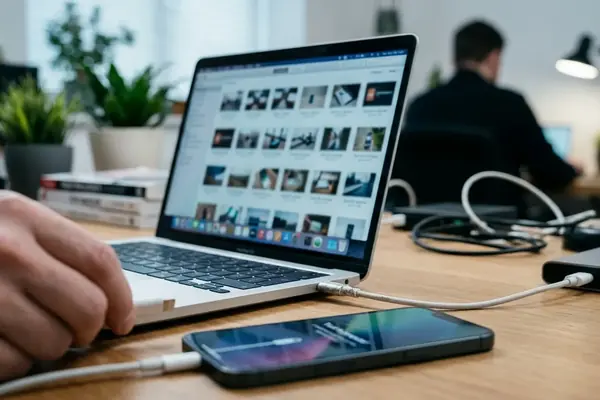
I recently traced a library replacement issue back to a misunderstood sync prompt. Connecting an iPhone that already holds a different managed music library and accepting the sync prompt can replace on-device music with the computer’s selection instead of merging the two. Cable workflows open in a predictable sequence: device selection, Music tab, entire-library or selected-content choice, then Apply.

On current macOS, the connected device appears in Finder’s sidebar. Music sync options sit in the device’s Music tab before Apply writes the selection. Apple Devices on Windows serves as the active local-management path for users who keep the master music library on the PC and connect over USB. iTunes remains the relevant Apple workflow on older Macs and Windows environments where it remains installed and supported.
Clicking Apply initiates a multi-step sequence: backing up the device state, preparing the files for sync, copying the audio data, and finally rebuilding the media library index on the mobile hardware. Reviewing Apple's guide to syncing iTunes content with iPhone, iPad, or iPod alongside the installed app version helps clarify tab labels and trust prompts that differ across those pairings. Using certified cables ensures the physical connection remains stable during large transfers. The interface will lock during the sync process—interrupting it can corrupt the local media database on the iOS device.
Apple Music Sync Library Without a Manual Copy
How does a cloud library differ from a local transfer? Sync Library makes a music collection available across signed-in devices. It delivers the same managed collection on participating hardware rather than performing a conventional device-to-computer export. This feature provides a good fit for subscribers who want the same managed library on multiple devices and have dependable internet access.
Matched Apple ID sign-in is required on each participating Mac, PC, iPhone, iPad, or iPod touch before the library mirror appears. The system scans your local files and attempts to match them against the server catalog. The matching algorithm relies on acoustic fingerprinting and metadata analysis. If a rare live recording fails to match the studio version in the catalog, the system uploads your raw file to the cloud storage allocation.
Cloud processing can leave newly added personal tracks in an uploading or matching state for an interval hovering around 15–90 minutes on typical home broadband before they show as available everywhere. Making a track available through Sync Library operates as a cloud continuity feature. Obtaining an unrestricted original file on disk requires a different approach. If you cancel your multi-year subscription, the matched and downloaded files lose their playback authorization.
iMazing for Two-Way Copies and iFreeUp for Legacy Devices
Moving beyond official sync clients introduces third-party utilities. iMazing serves as the broader choice when the task requires exporting accessible music from an iOS device, importing selected files, or avoiding a full-library sync. Available operations for music import or accessible-track export vary by iOS release, media rights state, and the desktop utility build in use. Protected subscription tracks remain locked to the active account and cannot be extracted as plain audio files.
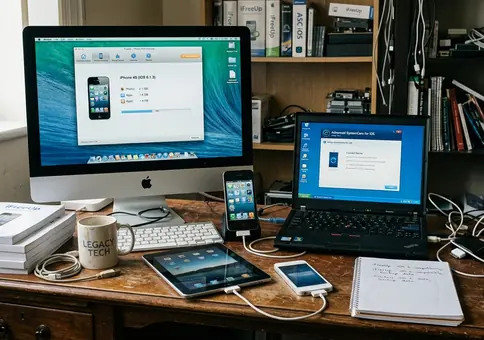
iFreeUp maintains a historical role as a Windows desktop utility for iOS file management, media transfer, and storage cleanup. Its practical scope covers compatible older iPhones, iPads, iPods, and Windows desktops. Older iPods and early iOS versions utilized a different file system architecture that modern sync clients sometimes struggle to parse correctly. Maintaining a dedicated Windows machine with iFreeUp ensures these older devices remain functional for ongoing legacy support.
Installers should be taken only from the verified publisher channel. Abandoned mirrors are rejected before any device is connected. Drawing on a review of iFreeUp records, the utility belongs only in a deliberately maintained legacy Windows workflow after current signing and device-compatibility checks. These tools offer extraction capabilities for specific hardware generations, provided you match the software version to the device era.
A Safer Order for the First Music Transfer
Start a new transfer session by identifying the managing computer and backing up that library. Copy the entire music folder to an external drive. This preserves the audio files alongside the crucial database files that store your play counts, ratings, and custom playlist structures.
Test the waters with one album or a playlist with a track count on the order of 15–25 before committing a full collection. This small batch allows you to verify that the metadata translates correctly across operating systems. Confirm that track titles, artwork, album grouping, and actual playback survive the transfer. Occupied storage increases provide no guaranteed proof of a successful migration. Sometimes, a sync will transfer the file payload but fail to update the database index, leaving the audio invisible to the music player.
Preserving Track Metadata
Always verify that album artwork and track titles appear correctly on the destination device before deleting any source files. Source files stay untouched until the destination library has been opened, spot-checked, and copied to a second backup location.
Choose Between Managed Sync and Selective Export
Finder, Apple Devices, or iTunes suit computer-led libraries where USB-managed sync is acceptable. Sync Library fits when the goal is the same subscription-managed collection on every signed-in device with internet access. iMazing handles selective modern two-way work. iFreeUp belongs to verified legacy setups.
Do you need to place music onto the iOS device, recover accessible tracks from it, or keep one library synchronized everywhere?