
What the Storage Screen Totals
An iOS storage category is an accounting group for files occupying device storage, rather than a folder the user can empty.
The list opens at Settings, then General, then iPhone Storage. On an iPad the same screen is iPad Storage. The bars fill only after that on-device scan runs. Until the scan finishes, the labels are names without totals.
The scan totals bytes already written on the device and assigns those bytes to labels. Audio, Video, Photos, Apps, Documents & Data, and Other are the groups that assignment produces. System Data is the label used on iOS 15 through iOS 18, from September 2021 to September 2024. Earlier releases more often placed the same kind of occupancy under Other.
A category total counts resident bytes.
A Cloud Listing Can Occupy Nothing Here
An item that appears only as a cloud-library entry, with no local file, sits outside that total. The screen charges physical occupancy on this device. A library can list a song, a photo, or a film that has never been written here. Visibility in the library and a local file are separate states, and only the local file enters a category total.
iPhone Storage and Desktop Sync Labels
Why can the iPhone and a desktop sync utility label the same files differently?
Settings and a desktop sync utility apply different grouping rules to one set of files. A category label marks how that interface accounts for the bytes. Placement lives in app containers and in sync selections, so two complete readings can still diverge without either reading being stale in the ordinary sense.
Refresh timing, pending sync activity, and category assignment all move the numbers. The device screen and a desktop sync utility can disagree while a sync is queued or running. Compare them again after sync status is idle and the device recalculates. During that interval a bar can still show a file a desktop session has already queued, or omit a file the desktop has already copied.
A Film Kept Inside an App Container
Media inside an app is accounted for with that app. A film stored inside an app container is counted on that app's storage entry. The storage screen follows the owning container and charges the app. The file can be video in format and still appear on the app row, because the assignment follows the container, and the Video label is reserved for media accounted for outside it.
iFreeUp describes those label differences between the device screen and a desktop utility. After the readings are compared at idle, removal still runs in the owning app or in the desktop sync selection.
Offline Music, Films, and Synced Media
Inspect offline video before offline audio. An HD offline film commonly falls between 1.5 GB and 5 GB per title. A compressed downloaded album commonly falls between 40 MB and 150 MB. One film can outweigh a long run of albums, which is why Video is the first media stop when free space is the goal.
The occupants that belong in these categories are files that actually reside locally: downloaded music, podcasts, films, television episodes, and media chosen in a desktop sync selection.
Keep three statuses apart while reading the list. An offline copy is a replaceable download. A library entry can be a listing with no local file behind it. A voice memo or an on-device recording is a unique file, and it stands outside the replaceable class. Preserve the recording. The download can be fetched again.
Match Removal to the Controller
Downloaded items leave through the media app that fetched them. Desktop-synced media leaves by changing the desktop sync selection. Desktop-synced media returns on the next sync when the sync selection is left unchanged.
Automatic downloads change how long a podcast deletion lasts. With automatic downloads left on, a removed podcast episode can return on a background refresh, or at the next manual open if background refresh is not allowed. The download rule has to change, or the episode can be downloaded again.
Local Photos Versus a Synced Library
Photos, recorded videos, edited versions, and items retained in Recently Deleted can all sit inside the Photos total. The bar presents them as one charge.
Recently Deleted keeps photos and videos for 30 days unless they are removed from that album sooner. The bytes stay occupied during that hold. Removing a photo from the library view leaves the charge in place until the album releases it, or until the 30 days end.
Optimize iPhone Storage keeps a smaller local version and can fetch the full-resolution original when the image is viewed and the device is online. That setting changes the size of the local copy and leaves the library item in place. Deleting an image out of a synchronized photo library removes the library item itself.
Synced Library Reach
With a synchronized library active, a deletion can reach another device on that library when it syncs, including after its next connection if it has been offline. Check synchronization status as part of the decision, before the delete is confirmed.
A deletion made in a local-only photo library stays on that device and is not sent to other hardware, so confirm that this phone should lose the image before you remove it.
Desktop-synced albums follow the computer's sync selection. Change that selection, complete an idle sync, and those albums drop from the device on the same terms as synced music.
The App Binary and Its Stored Files
An app row is a sum, and the sum hides the mix. The executable is the installed program. Documents, databases, downloaded content, and caches are the files that program has written or fetched. One large total can be any combination of those parts.
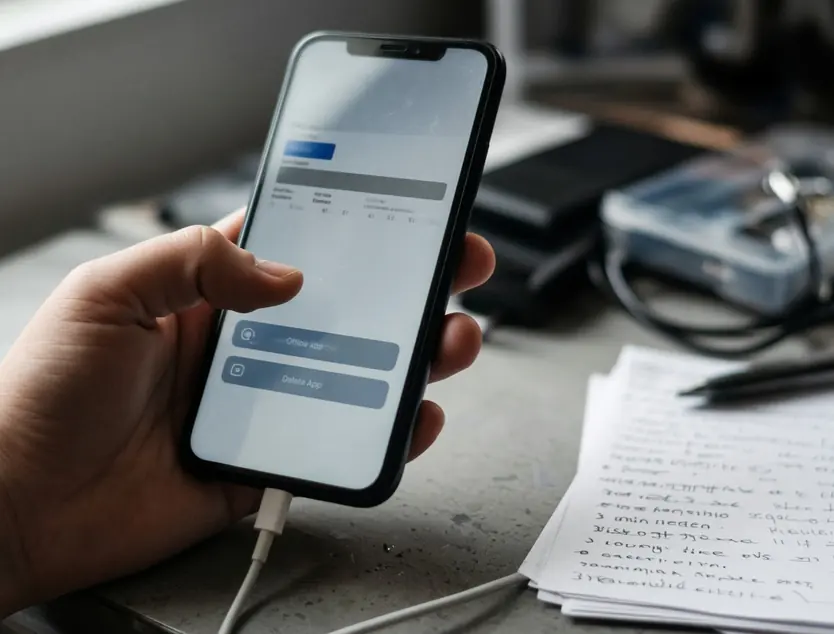
Offload App removes the executable and leaves documents and data in place. After an offload, the icon can be gone while the storage row stays large, because the documents never left. Delete App removes both, and documents that were not exported go with it. Export anything unique before that second action.
Large document collections and offline files map to the app that manages them. Where the Files app holds the collection, Files is the control. Where a reader, a notes app, or a download manager holds the files, that app's own document list is the control.
Attachments That Travel With the Account
A Messages attachment removed from a syncing conversation can leave other devices on that account once they sync. Read the thread on the device you intend to keep before clearing a large attachment from a conversation that syncs.
Mail set to download full messages holds bodies and attachments locally according to the account settings, whether Mail has its own row or is grouped with Documents & Data. The account download setting is the lever. A full-message rule keeps filling local storage for as long as it remains selected.
Caches Inside Other and System Data
Other collects caches, logs, temporary files, and supporting data. Treat the label as a mixed accounting bucket. Each file inside it still belongs to whatever wrote it.
On iOS 15 and later, System Data covers caches, logs, and supporting system files. The separate iOS or iPadOS row is the installation and sits outside manual cleanup. Use the label the device shows, Other or System Data, and keep that bucket distinct from the installation row. The installation row is the operating system. The bucket beside it is supporting occupancy the system writes and later trims.
Caches support repeated access and may regenerate after removal. A cache removed from an app can be rewritten in the same session if the app stays open and the network is available. A permanently removed download stays absent until a new fetch is requested.
System Data can move by hundreds of megabytes to several gigabytes during ordinary use without a new download, as logs and caches are written and later trimmed. A rising figure across a quiet stretch of ordinary use can be that write-and-trim cycle.
Clearing Safari website data signs the user out of sites that kept a session there. The control is Safari's Website Data list in Settings, and the menu path differs between current and older iOS. Expect the sign-out, and plan to sign back in on sites still in use.
Route Through the Owner
Other and System Data describe occupancy. Lasting removal is performed in the app, the photo library, or the desktop sync selection that owns the file.
An Ordered Pass Through Owning Apps
Recovered space lasts when the file was replaceable and the source rule was changed. The pass follows that order, one class at a time.
I record the available-space figure at the top of the storage screen before the first removal, and I compare that same figure after the screen refreshes. Available space sits above the category list, so the comparison uses a figure that stands apart from any single bar.
- Record available space before any removal.
- Inspect the large categories and the large app entries.
- Identify replaceable files, and set unique recordings and unsynced originals aside.
- Remove one class of content at a time.
- Wait until the deletion and any active sync show as finished, then allow the storage screen to recalculate before judging available space.
Take offline video first, then offline audio, then large app downloads and reviewed attachments. Leave regenerating caches until those classes have been checked. Discretionary offline video and audio are replaceable, and they are usually the largest user-controlled set.
Wait for the Recount
Judge the result from the available-space number recorded before the first removal. Read it again only after the storage screen has refreshed.
Each operation goes through its owning app, the photo-library controls, or the desktop sync settings. The category bar records the accounting result after the fact. The reclaim boundary is that recorded available-space number.
Queues, Idle Sync, and Leftover Bytes
Where does an interrupted download sit if no category is named for it?
Interrupted downloads and suspected orphaned sync leftovers come after the routine category steps. They sit outside the named categories. The next look is the originating app's download queue, or the relevant desktop sync selection. Refresh the connection, then reopen the storage reading. Ownership is confirmed in that queue or selection.
Cancel or complete an interrupted download from the originating app's queue. The storage category bar has no cancel control for that transfer.
After a desktop sync session is reconnected and shows idle, reopen the storage screen. A queued leftover may leave the total after recalculation. If the total is unchanged after the screen refreshes, return to the queue or the sync selection and confirm whether the item is still selected.
A suspected leftover and a verified removable item call for different next actions. Identifiable ownership, together with the normal removal control in the owning app or sync selection, decides the next action. A bar that still looks high is a reason to look in the queue. It is a weak reason to delete a file you cannot name.
A cache deleted on a given day can occupy storage again later that day, as soon as its app is opened and fetches the same content.