
Check Battery Condition Before Deleting Another App
Checking battery condition is often the most useful first move when an aging iPhone feels slow. Hesitant app launches and uneven responsiveness can persist after photos, videos, and unused apps have been removed. At that point, another round of deletion may leave the same delay with fewer useful files on the device.
The diagnosis starts by separating the readings that describe the phone:
- Storage capacity describes the space available for apps, documents, downloads, and system activity.
- Battery charge describes the remaining charge at that moment.
- Battery condition concerns the battery’s ability to store energy and deliver power as it ages.
Available storage cannot restore a battery’s ability to supply peak power. A phone with room for new photos can still struggle during a burst of activity, while a phone with a healthy battery can encounter problems saving content when storage becomes critically low.
The practical starting point is to identify which condition matches the symptoms. Slow launches call for a battery check; failed saves and storage warnings also call for a capacity check.
Why a Charged iPhone Can Struggle During App Launches
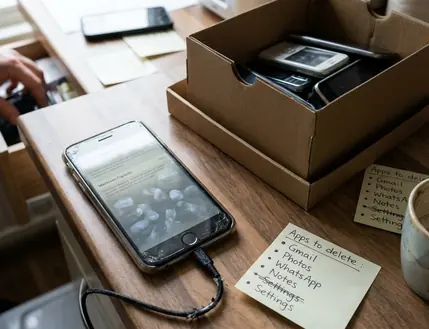
How can an iPhone show remaining charge and still struggle to launch an app smoothly? Charge level describes how much energy remains. Launching an app can demand a short burst of power, and an aging battery may have difficulty delivering that burst.
Chemical aging increases internal resistance. Under a sudden demand for current, the battery’s voltage can drop far enough to cause an unexpected shutdown. Apple’s iPhone battery and performance guidance explains that chemical aging can reduce peak-power delivery and that supported iPhones can manage performance to help prevent unexpected shutdowns.
Performance management moderates demand so the phone can continue operating. That protection can affect responsiveness, making the battery’s peak-performance information relevant when app launches become hesitant.
Read Capacity Alongside Performance Messages
Maximum capacity and peak-power capability answer different questions. The capacity reading helps describe battery aging; a peak-performance or service message adds information about the action the device recommends. A capacity percentage alone should not become the diagnosis. The useful combination is the displayed message, the observed slowdown, and the storage check that follows.
Storage Pressure Shows Up in Saves, Downloads, and Updates
Storage pressure creates a separate problem. iOS and apps need writable space for temporary files, caches, incoming downloads, and update preparation. When that working space runs short, ordinary tasks can stop completing.
The clearest signs are concrete:
- A storage warning appears.
- A download fails to complete.
- An update is interrupted during preparation.
- The phone has difficulty saving new photos or other content.
Removing an unneeded large download can address that shortage directly. It makes space available for the next save or download. The same removal leaves battery chemistry unchanged, so battery-related hesitation may remain.
Repeated cache clearing is a poor default response to slow launches. Apps may rebuild those caches or download content again, creating more work while the original power constraint remains.
Targeted cleanup begins with the storage categories and the task that is failing. An interrupted download calls for checking available capacity. A slow launch accompanied by a battery service message points toward a battery assessment. When both conditions appear, each needs its own action.
Read Battery Messages, Then Inspect iPhone Storage
A useful first pass needs only Settings and a careful reading of the messages already present. The sequence keeps a conspicuous storage category from distracting attention from a battery warning.
- Open Settings > Battery. Open Battery Health or Battery Health & Charging, where available.
- Read the capacity information and the accompanying message. Check for peak-performance information or a service recommendation. Record the wording before making changes.
- Open Settings > General > iPhone Storage. Inspect available capacity and the largest categories. The number of installed apps is a poor substitute for checking how much space their content occupies.
- Match the findings to the symptom. A service message with adequate working space makes a battery assessment relevant. Storage warnings with ordinary battery status call for targeted space recovery. Both findings call for both actions.
Menu names and battery-health availability vary by iPhone model and iOS version, so an older device without those screens may require a battery assessment through a repair provider.
Preserve Local App Data Before Cleanup
Before deleting content or preparing the phone for service, verify a completed backup and its completion time. Deleting an app can remove its local documents; offloading is designed to retain its documents and data. On a legacy device, an essential app that can no longer be reinstalled should stay installed. Removing an unneeded download offers a more controlled cleanup target.
Work Through a Slow-Launching iPhone With a Service Message
Consider an older iPhone that launches apps slowly, displays a battery service message, and still saves photos and completes ordinary downloads. The next action follows from those findings.
- Read the battery message. Open the battery-health screen and record the service recommendation alongside the capacity information.
- Check iPhone Storage. Confirm the available capacity and inspect the largest categories. Successful ordinary saves and downloads support the finding that working space remains available.
- Verify the completed backup. Check its completion status and time before changing content or preparing for service.
- Arrange a battery assessment. The service message and matching symptoms make battery condition the next issue to investigate. Keep the frequently used app installed: deleting it would free capacity without correcting the identified power-delivery concern.
- Repeat the same launch task after the battery issue has been addressed. Use similar charge and temperature conditions, then compare responsiveness with the original behavior. Persistent hesitation becomes the next troubleshooting task, with the battery and storage findings already separated.