

Contents
- What Can an iPad Running iOS 9 Still Do Reliably?
- App Availability and Certificate Errors Set the Hard Limits
- Where iFreeUp Fits and Where Storage Cleanup Stops
- Offline Reading, Music, and Local Video Make Better Trials
- Preserve Working Apps Before You Reclaim Storage
- Keep the iPad Only for a Task It Can Still Complete
What Can an iPad Running iOS 9 Still Do Reliably?
Which useful task can your older iPad still complete without depending on an unsupported app or website?
That question drives every check in this guide, because a finished task can be tested directly. The tablet's age cannot.
The scope is narrow on purpose. It covers 32-bit iPads that remain on iOS 9 or earlier: the iPad 2 (introduced March 2011), the iPad (3rd generation, introduced March 2012), and the iPad mini (1st generation, introduced November 2012). These models share a late software line of iOS 9.3.5 (August 2016) and iOS 9.3.6 (22 July 2019). The 4th-generation iPad also uses a 32-bit chip, yet it received iOS 10 and stopped at 10.3.3 (19 July 2017). An iOS 9 procedure does not describe it, and a shared chip width says little about what software will run.
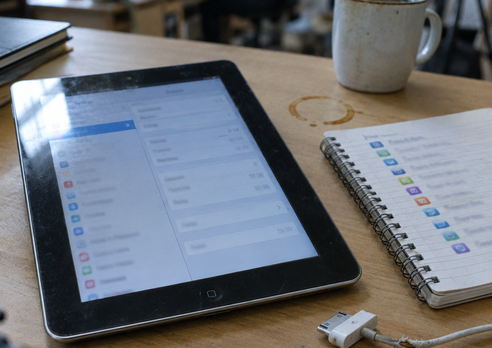
Within this group, the specifics still differ. The iPad 2 and iPad mini (1st generation) have 512 MB of RAM, while the 3rd-generation iPad has 1 GB. Storage shipped as 16 GB, 32 GB, or 64 GB. The marketed figure tells the owner nothing about free space; read Capacity and Available under Settings > General > About instead. Model, installed iOS version, available storage, and the apps that actually work together define what the device can do.
App Availability and Certificate Errors Set the Hard Limits
Software access determines more outcomes than storage does, so it is examined first.
Starting 1 February 2015, new App Store submissions had to include 64-bit support. iOS 11 (19 September 2017) then removed the 32-bit app runtime on devices that could install it, and many listings stopped offering an iOS 9 build. On the iPad itself, the store installs a title only if a build with a minimum iOS of 9 or lower is still offered. Deleting an app keeps no local installer behind. A working app removed during cleanup may simply be gone.
Launching Versus Functioning
An installed app that opens to its home screen has passed only the first test. Its login endpoint, synchronization host, or content service fails independently of the app binary. A reader with locally stored files may work indefinitely; a streaming client with an intact icon may reach a server that no longer answers.
Why Connections Fail
Connection errors have several distinct causes, and an expired certificate is only one of them:
- Device clock: a date far from the current calendar day breaks certificate validation on its own.
- Trust store: after 30 September 2021, HTTPS chains that still depended on the expired DST Root CA X3 root failed on devices whose trust store was never updated past the iOS 9 era. That date explains nothing if the displayed clock is wrong.
- Protocol and browser capability: iOS 9 supports TLS through 1.2 and does not implement TLS 1.3. A site requiring TLS 1.3 or post-2017 page features can fail in Safari even with a correct clock and an intact chain.
- Server-side changes: a discontinued service fails regardless of anything done on the tablet.
Where iFreeUp Fits—and Where Storage Cleanup Stops
iFreeUp and Advanced SystemCare for iOS are legacy desktop-side utilities. Their supported desktop environment, device access, and cleanup functions remain unverified until the exact build's own support list has been checked against the connected model and its iOS 9 version.
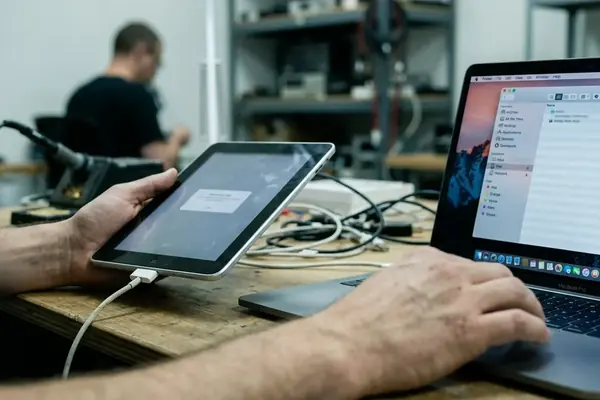
Connection is the first practical test. The iPad 2 and 3rd-generation iPad use a 30-pin connector; the iPad mini (1st generation) uses Lightning. If the utility does not list the iPad within 60–120 seconds of a direct USB connection, treat that build's support as unconfirmed.
Where the connection works, the plausible reach is limited to temporary files the utility can list and to file transfers it actually supports. Protected system storage and iOS upgrades lie outside that reach. iOS 9 also has no Files app and no app-offloading control, so user documents sit inside the installed app, in the camera roll, or in a desktop file-sharing list the connected software still shows.
Before Trusting a Cleanup Result
Write down Available from Settings > General > About before and after a reviewed delete, in the units iOS 9 shows, and do not substitute a desktop estimate. No recovery size can be promised: space returned equals only the reviewed temporary files and redundant media actually removed. On a 512 MB model, a stall that persists after visible caches are cleared can be memory pressure or a network wait rather than leftover files.
Offline Reading, Music, and Local Video Make Better Trials
Three roles hold up well because each can be tried with files already on the tablet and without an account handshake. Each still carries one dependency.
- Local documents: requires a reader that is already installed and a document format it opens.
- Local music: requires a playback app that still launches. Check it by playing one track from the device library continuously for 3–5 minutes with Wi-Fi off.
- Local video: requires a file whose container the installed player accepts, moved by USB file sharing or a sync the desktop software still lists. A cloud sign-in does not count as a transfer method here.
Consider a hypothetical case, not a timed trial. Safari on iOS 9 cannot finish loading a manufacturer's support site. The same manual, copied to the iPad earlier, opens in an installed reader with Wi-Fi off. The website failed; the reading task did not.
Hardware sets a separate ceiling. Stop using the device if a recently completed charge cannot carry 10–15 minutes of that local playback, if the enclosure becomes hot during the same window, or if the battery is swollen. Another cleanup pass is the wrong response to any of those signs.
Preserve Working Apps Before You Reclaim Storage
App data on iOS 9 is often the only copy, so identification and a working-task check come before any deletion.
- Record the model identifier shown on the device (iPad2,1 through iPad2,4 for iPad 2; iPad2,5 through iPad2,7 for iPad mini 1st generation; iPad3,1 through iPad3,3 for iPad 3rd generation), the full version string such as 9.3.5 or 9.3.6, Available storage, and the single intended task.
- Confirm that the intended app currently completes that task.
- Copy irreplaceable documents and media to another device, then open every copied file there in the same sitting, before the matching item is deleted on the iPad.
- Run one backup pass if the desktop software lists the connected iOS 9 device. A backup preserves data; it cannot guarantee that an unavailable app will reinstall or that a disconnected online service will return.
- Delete only reviewed items, then retest at once: same local file, same installed app, Wi-Fi off for an offline task, with the new Available figure written beside the earlier one.
When the Backup Stalls
If the iPad does not appear within 60–120 seconds on a direct USB cable, do not add a trust profile or an unsigned driver to force the backup. App offloading belongs to iOS 11 (2017) and plays no part in this sequence; erase-all stays outside it as well.
Keep the iPad Only for a Task It Can Still Complete
The Deciding Test
Continued use is worthwhile when one specific task works reliably inside the device's software and hardware limits.
Storage bulk, software access, and hardware condition must be separated before iFreeUp or any similar utility enters the picture. A better Available figure on iOS 9.3.5 or 9.3.6 does not update Safari, revive a discontinued sync host, or make a hot or swollen battery fit for use. These models have no feature update past that line, and the last build dated for them is 22 July 2019, so a newer software ceiling is not coming.
If the intended job depends on software that cannot be obtained, a service that does not answer, or hardware that is unsafe to charge, the decision is made. More cleanup will not change it.
Run the trial now, before deleting anything: switch Wi-Fi off, open one local file in one already installed app, and watch a document load across a 15–30 second window or play media through its first 2–3 minutes. If it finishes without a network fetch, assign the iPad that task. If it fails, stop in the same session, with no cache wipe, no trust-profile install, and no reset.